How to get landscaping leads from Facebook Messenger and book them
A homeowner can send photos in Messenger and still leave your office without an appointment. Give each conversation a clear next action, then verify the CRM record and calendar entry. Website context becomes useful after you know which inquiries are still waiting.
Steps
-
Start a conversation about one landscaping service Choose a service such as landscape installation or seasonal cleanup.Ask for location, scope and preferred timing in Messenger.
Meta's ads that click to message can open a conversation in Messenger. Match the ad image and first question to the service you want to book. State the service area before asking the homeowner to send project details.
Have your office use a short reply that asks for the address or ZIP, the work needed and timing. Invite photos when they help your estimator assess access or scope. Tell the homeowner when a person will review the request.
-
Create an inquiry record with a named owner Save the conversation source and useful project details in your CRM.Test any existing connection before depending on automatic delivery.
Use the CRM you already run. Create fields or notes for service, location, timing, conversation link and assigned person. Check for an existing customer or open project before adding another record.
Send a test Messenger inquiry and inspect what actually reaches the CRM. Confirm that photos or their links remain accessible to the estimator. If your account has no verified connection, enter the inquiry manually and assign a follow-up task. A conversation in the inbox still needs someone responsible for it.
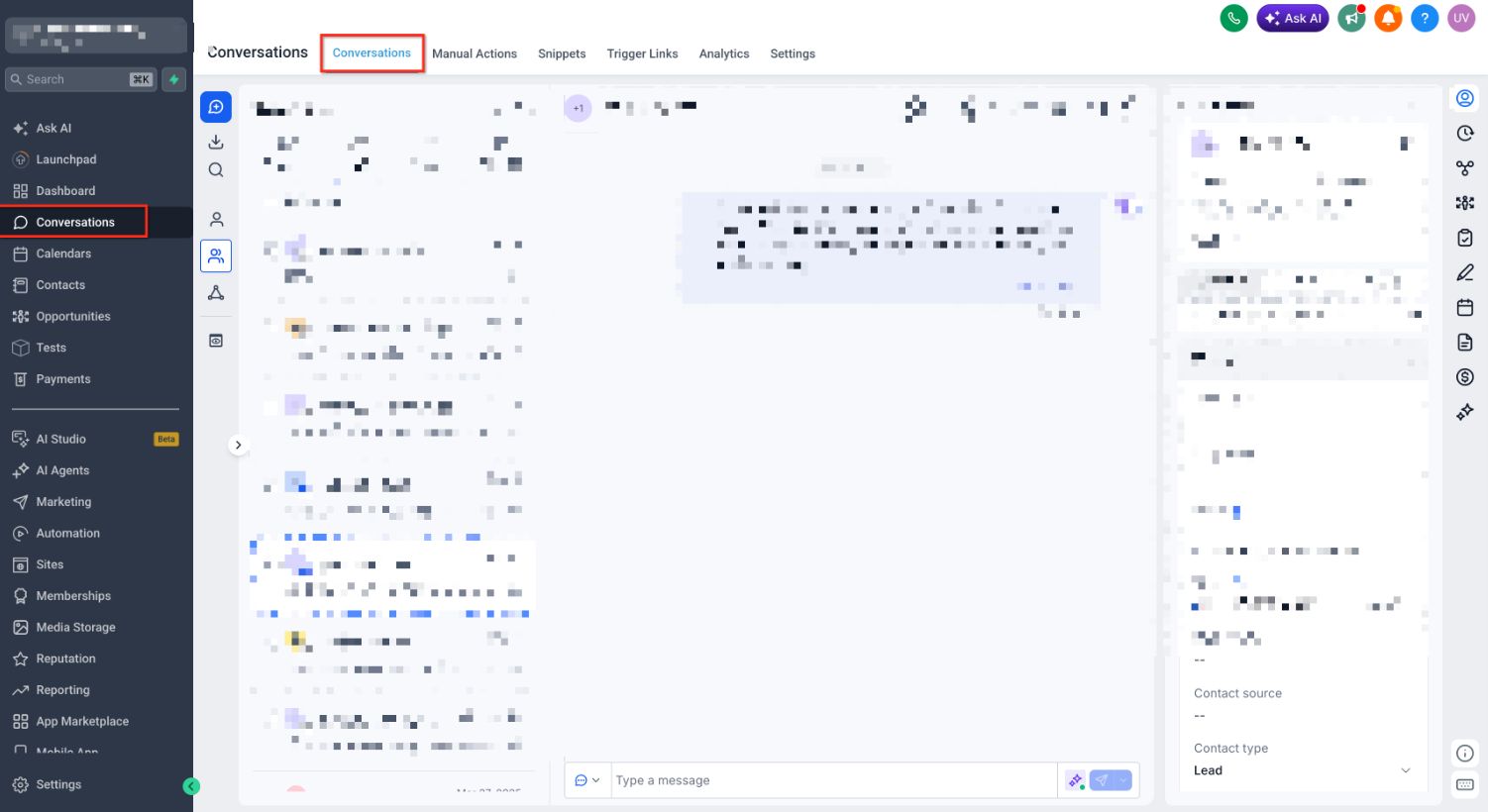
HighLevel’s example shows where incoming Messenger threads appear in Conversations. Source -
Verify the appointment before marking it booked Send qualified prospects to the calendar on your website.Confirm address, appointment time and homeowner reply details.
Link to a page on your site that explains what a landscaping consultation covers and shows the relevant calendar. Check the resulting appointment and confirm that the estimator can see the project notes. Record whether the visit is requested, confirmed or completed.
If a homeowner clicks the link and disappears, inspect the calendar before sending a reminder. An appointment may exist under another email or phone number. Make a test booking after a calendar change so broken availability or missing notifications are caught early.
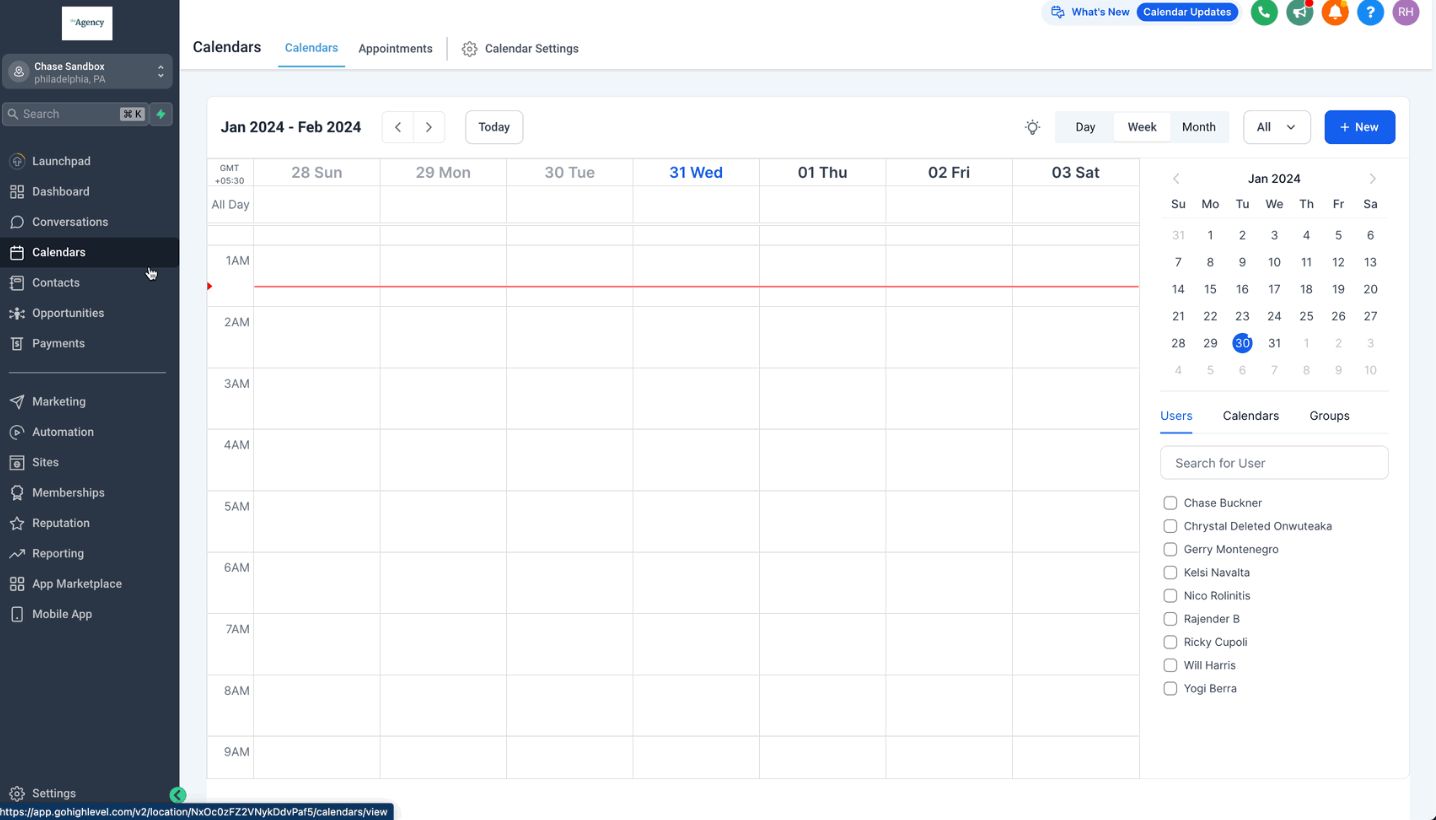
HighLevel’s internal calendar view. After a test booking, check that the appointment appears in the correct calendar. Source -
Add website context only when the connection is verified Keep a list of inquiries with no confirmed appointment.Review available website activity without guessing which Messenger contact visited.
Use PostHog to compare tagged calendar-page visits with verified booking events. An embedded calendar can require a supported callback or a CRM-side success event. Test the real confirmation and keep the CRM as the record of booked appointments. A campaign tag describes the visit source.
PipelineOn can identify some homeowners visiting your website, with available details and page activity. Compare a relevant record with the inquiry using information you can verify. Keep uncertain matches separate. A household match does not prove which person used a device. Use confirmed project details to write a useful next reply, respecting the channel's current messaging limits.
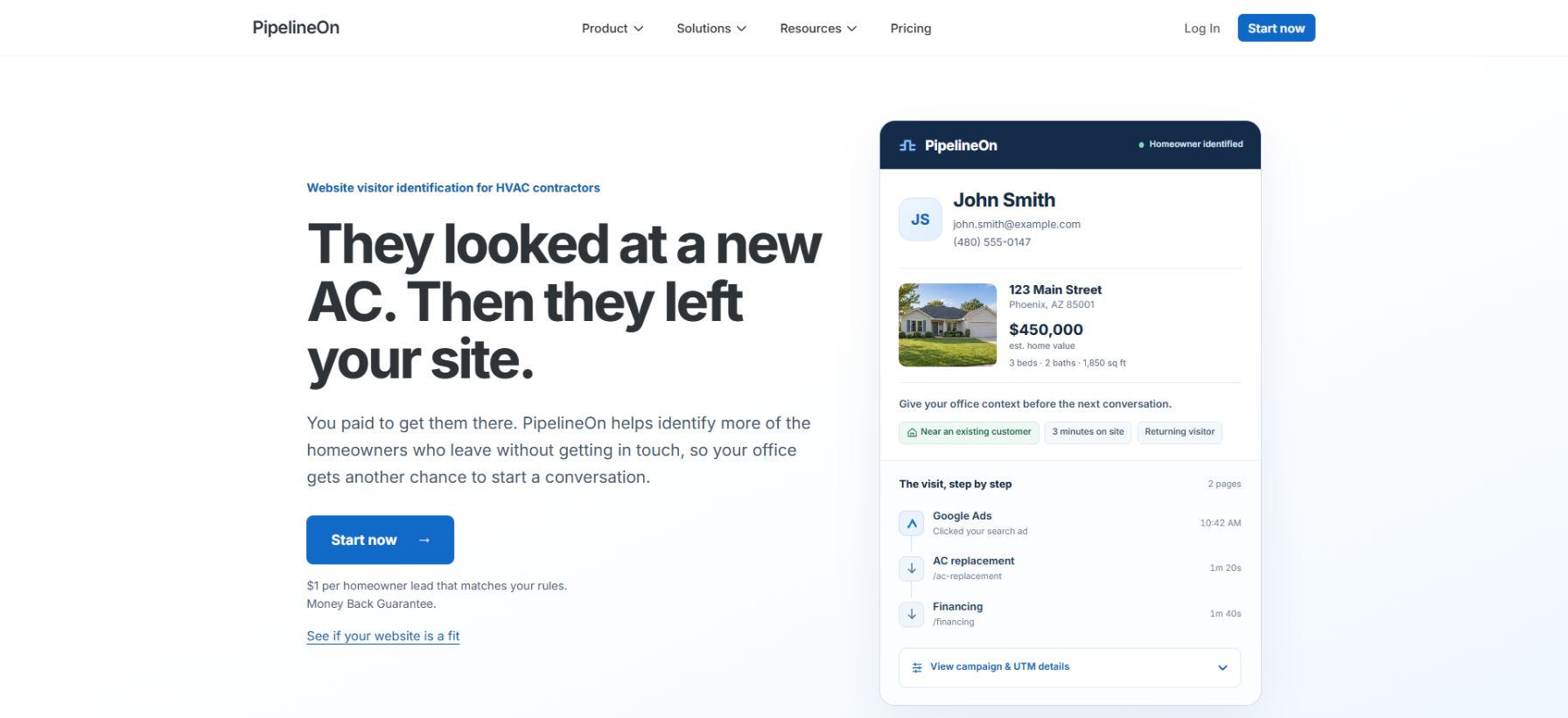
PipelineOn’s public demo record shows where the visit came from and which pages were viewed. Source
What to measure
Review conversations, suitable inquiries and confirmed visits as separate counts. Ask the office to record why each inquiry stopped so your next change fixes a visible booking problem.