Prevent duplicate water heater estimate tasks in HubSpot
One homeowner can submit your water heater form and appear in a visitor review workflow. If both paths create estimate tasks, your office may call twice about the same job. Test the record matching and task rules before increasing traffic to the form.
Steps
-
Make the submitted request the service intake record Capture the service propertySave the submission time and sourceAssign one estimate owner
Ask for name, email, callback number, address and whether the homeowner reports no hot water or is planning a replacement. Route urgent reports through your existing dispatch process. Use the accepted submission as the evidence that someone requested help.
HubSpot uses email addresses for contact deduplication in supported paths, with form settings affecting the behavior. A deduplicated contact can still have duplicate tasks. Review the form's actual settings and the workflows that run after submission.
In the HubSpot form editor, mark the fields your dispatcher needs to accept the request as required. Submit a test and confirm those values are saved to the corresponding CRM properties.
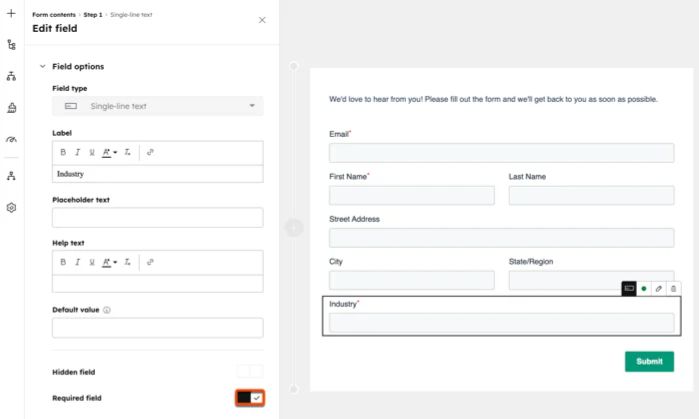
HubSpot’s form editor shows the Required field control for a form field. Source -
Compare visitor evidence with the actual form record Check shared contact fieldsKeep page history separate from intake answersInspect the delivered visit note
Open the form-created HubSpot contact beside the corresponding PipelineOn record. Compare available email or phone details, property address, timestamps and water-heater page activity. Use reliable shared details to connect them. A similar visit time cannot establish identity.
Send a test request with an email address you control and write down the resulting HubSpot record ID and task ID. Test how visit context is handled with a supported integration fixture or a separately verified matched record. The form submission tests intake. It does not test whether PipelineOn can identify that visitor.
The shared screenshot is PipelineOn's public HVAC demo. Its fields and timeline show the evidence to inspect. It cannot verify your plumbing form or HubSpot delivery. Compare your controlled submission with the actual integration note.
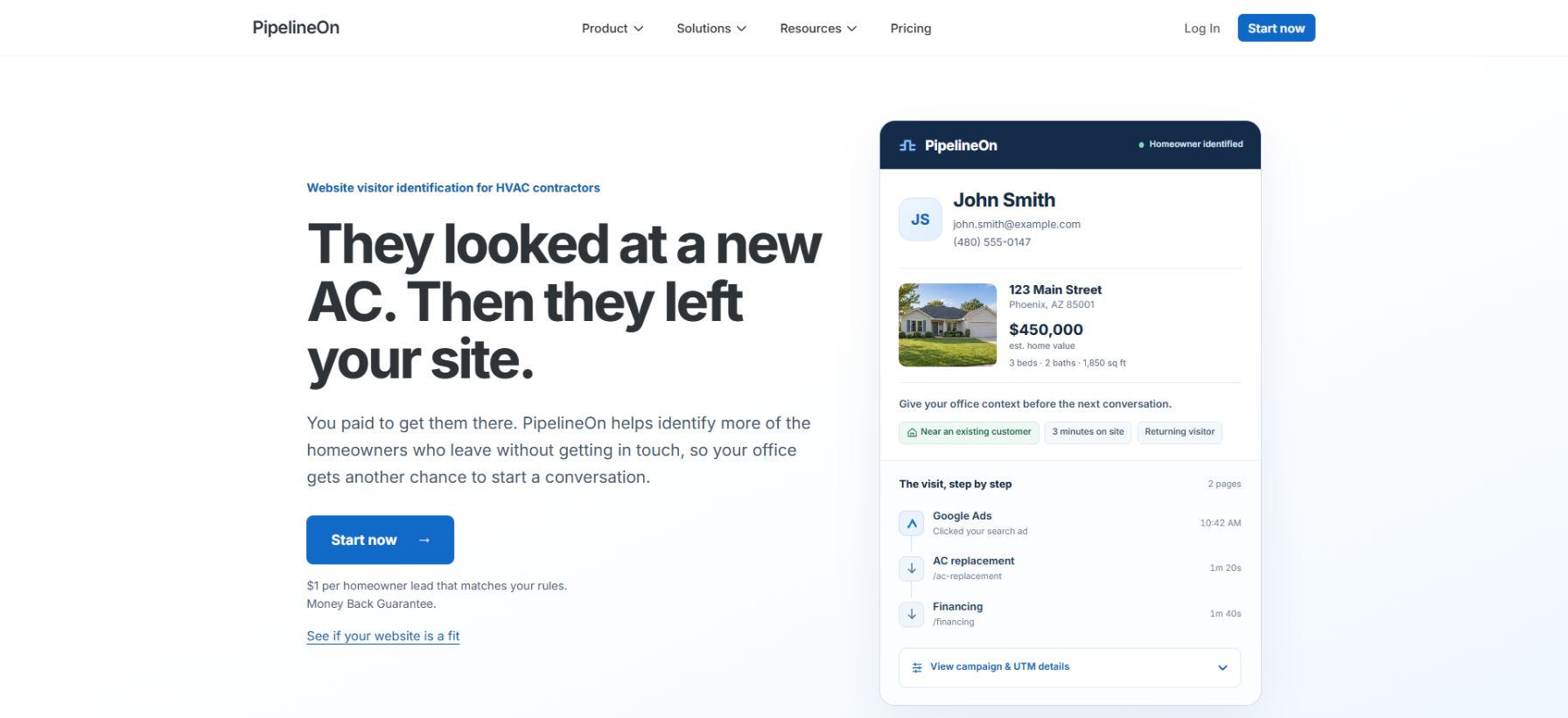
PipelineOn’s public demo record shows where the visit came from and which pages were viewed. Source -
Give task creation to one workflow Check for an open estimate requestSeparate visit-note handling from task creationReview re-enrollment
If your HubSpot subscription and permissions support workflows, let the form-intake workflow own the estimate callback task. Otherwise, give one dispatcher that job. Check for a task on the same open project before creating another. Visit context can go to the existing owner.
Check re-enrollment settings in every relevant HubSpot workflow. A contact completing a workflow can qualify again when configured triggers recur. For integration events, retain a stable submission or delivery identifier so retries can be recognized. Have your automation owner implement that guard where the event is handled.
-
Run the duplicate cases before launch Submit twice for the same projectTest a visitor update after the formCheck task owner and final booking
Use controlled test records to submit the same request twice, deliver a visit update afterward and replay an integration event. Inspect the actual HubSpot contact, note, open task and opportunity after each case. Expect one active callback task for that project.
Also test a different property and a genuinely new replacement request so your guard does not suppress useful work. Record accepted inquiries, duplicate tasks prevented, qualified estimates, completed visits and sold jobs. Count a matched visit separately from a submitted request.
What to measure
Confirm the office sees one current task with the original request and useful visit context. Keep the test record IDs so you can repeat the check after a form or integration change.