Route Maps visitors into a planned arborist assessment
Someone finding your tree company on Maps may want advice about tree health rather than a removal quote. Explain the assessment you offer on your site and give your office enough information to arrange the right person. Keep immediate reported hazards on your actual staffed escalation route.
Steps
-
Match the Business Profile to your assessment service Use accurate hours and coverageLink to the relevant service pageState assessment terms plainly
Check your Google Business Profile's actual services, contact details and website destination. Google requires accurate business representation and a precise address or service area. Make the linked page explain planned arborist assessments and how the office arranges them.
State any fee, what the assessment includes and who performs it. Use credentials your company can verify. Keep a separate contact route for caller-reported urgent conditions and avoid implying that every inquiry receives an immediate site visit.
-
Collect observations without diagnosing the tree Ask for location and the observed concernCollect access and contact detailsLet the arborist decide the assessment scope
Ask for service address, contact role, which tree or area concerns the person and what they observed. Keep photographs optional and limited to safe accessible views. Avoid requiring a guessed species, height or diagnosis to submit.
TreesAreGood explains that an arborist can help assess and manage tree risk. Use that professional review as the next step when appropriate. A photo or page view alone cannot establish tree stability or the work required.
-
Confirm the correct assessment calendar Verify territory and assessor availabilityCheck existing property recordsInspect the resulting appointment
Have the coordinator check the service property and any earlier assessment or open job. Assign the appropriate arborist and appointment type. Keep the reported concern and access contact attached to the visit.
Book a controlled test through your site. Open the internal calendar and verify the local time, assigned arborist and customer message. Check each result before making the page your main appointment link.
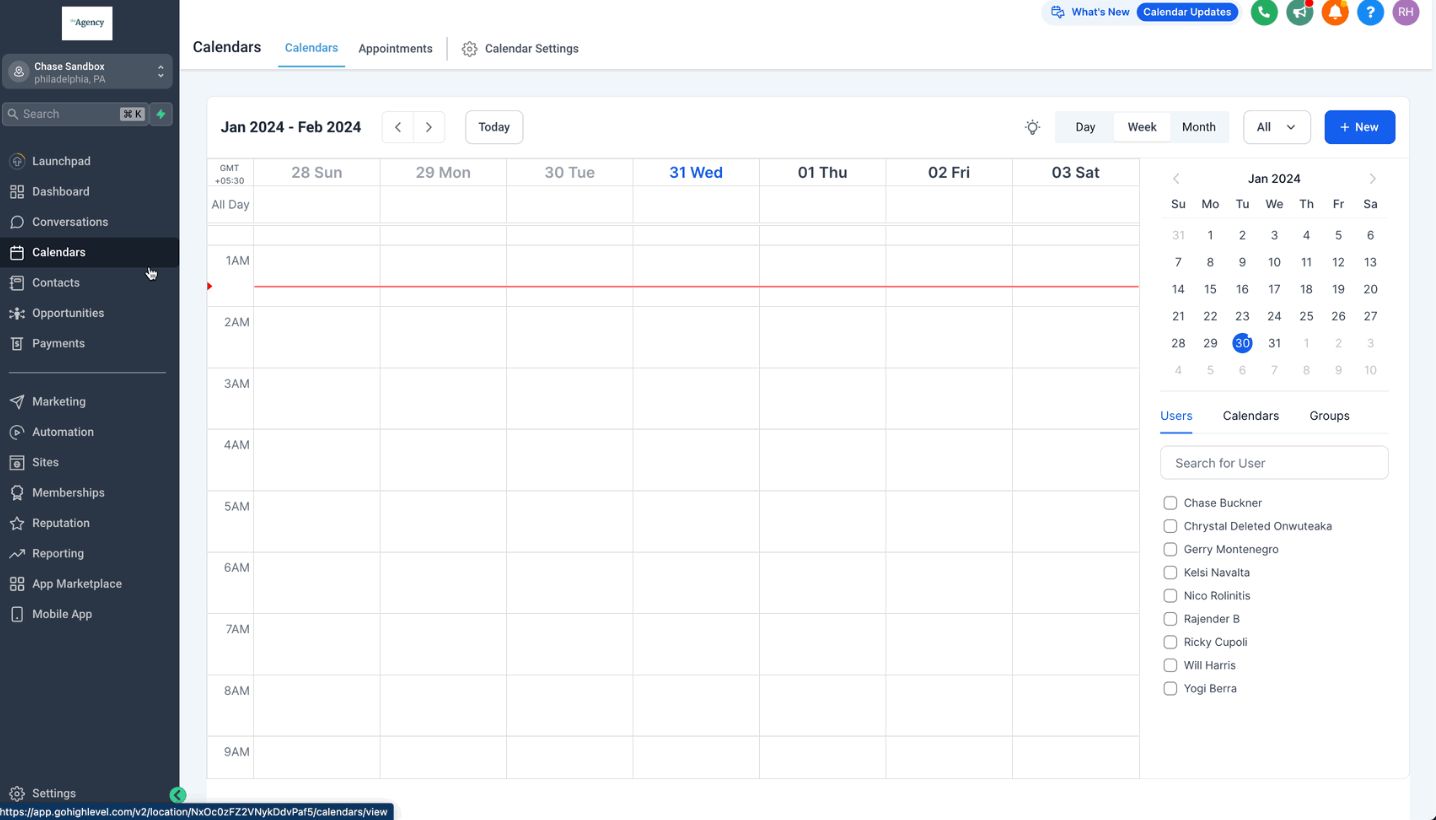
HighLevel’s internal calendar view. After a test booking, check that the appointment appears in the correct calendar. Source -
Track attended assessments and subsequent work Preserve the Maps inquiry sourceRecord assessment completionSeparate advice from sold crew work
Track requests, qualified appointments, completed assessments and any resulting proposals or completed work. An assessment can produce advice without a crew job. Keep that outcome visible alongside declined and deferred work.
Review requests routed to the wrong service, missed appointments and unclear fees. Fix the profile destination or page wording when the same misunderstanding repeats. Keep urgent reports outside the planned-assessment booking flow.
Review eligible PipelineOn matches from the assessment page separately from appointments. Where the available property ZIP is covered and the matched record agrees with an earlier conversation, send one task to the coordinator who can verify the property’s current request.
What to measure
Test the journey from the live profile destination to the arborist's schedule. The page should set the same expectation your office and assessor can deliver.