Review pest-inquiry AI suggestions before sending replies or booking
A suggested reply can sound useful while assigning the wrong inspection or claiming more than the customer reported. Give your pest office a review rule for the message and every proposed action. The staff member should be able to point to the evidence before sending.
Steps
-
Prepare approved inquiry and inspection information Use the customer's actual report and technician-approved resources.Keep unknown pest and treatment details unknown.
Have your service lead approve the general inspection and preparation information the office can share. Save the reported observations, service location, contact route and requested next step from the actual conversation. Keep a photo or suggested pest name described as customer-supplied information.
Do not let a generated response establish an infestation, prescribe treatment or promise a result from page activity. Give treatment and technical questions to the qualified team. Record who maintains the approved resources and when they were reviewed.
-
Use staff-reviewed suggestions in the supported account mode Confirm Suggestive Mode and feature access.Inspect each proposed action before Send and run.
HighLevel's Conversation AI Suggestive Mode can propose replies and CRM actions for staff review. Check that your account supports the intended feature and that it is configured in the appropriate mode. Do not assume an automated workflow has the same approval behavior.
Read the response and every proposed action, including any contact update, assignment or booking. Compare the actual customer request, service address and appointment with the proposed values. HighLevel selects the proposed actions by default. Turn off every unsupported action before selecting Send & run.
-
Check website context separately from the generated suggestion Verify tracking and the actual service-page source.Attach homeowner evidence only after reliable identity checks.
If PipelineOn is already installed, verify the site is live and inspect the available page and campaign evidence in your account. For paid collection, check the real service ZIPs and page rule before accepting additional records. An inspection page and a general prevention resource may warrant different review.
For a new WordPress setup, install the official plugin, approve the exact site and verify Live status first. Compare reliable shared fields before joining a homeowner match to a conversation. The public demo shows visit context. It cannot prove the reported pest or authorize a proposed booking.
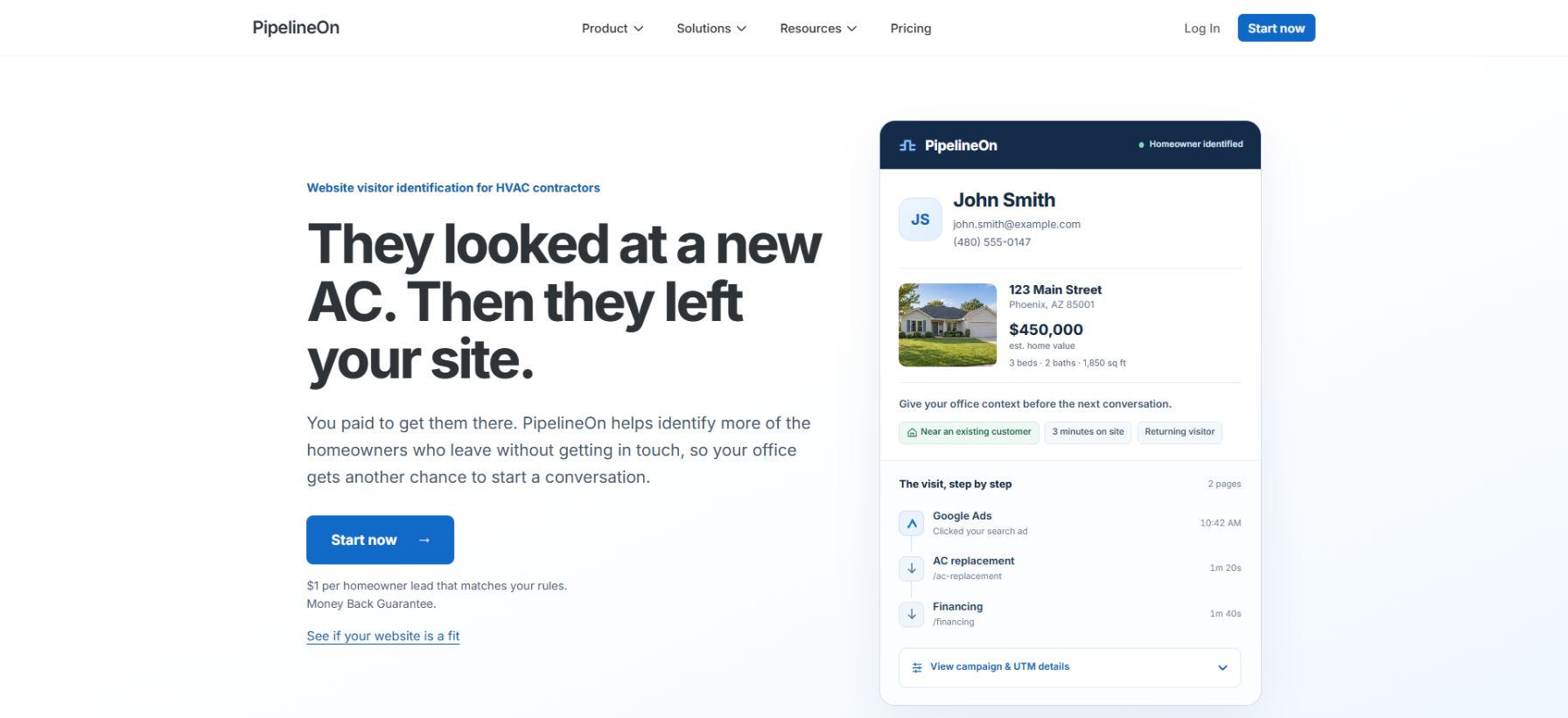
PipelineOn’s public demo record shows where the visit came from and which pages were viewed. Source -
Test wrong-action cases and confirm the actual outcome Test an unknown pest, existing booking and direct human request.Review executed actions and office ownership after sending.
Use controlled conversations with an unknown pest, a current customer with an existing appointment and a request to speak to a person. Check that staff can withhold an unsuitable action while preserving a useful reply. Inspect the actual contact, task and booking after an approved action runs.
Prioritize unresolved requested inspections and existing service questions under your office's rules. Keep additional website matches in their own eligible-review queue. Track corrected suggestions, accepted inspection requests, attended visits and unresolved handovers. Repair the source or configuration when the same unsupported suggestion recurs.
What to measure
Save the controlled cases and staff review rule with the configuration. A successful send is complete only after the intended reply and approved office actions are verified.