Book garage door calls after hours without duplicate jobs
An after-hours receptionist needs to know what your office can promise tonight. Have it answer calls, collect the reported problem and book appointment types your calendar supports. Your morning team should inherit one record for each request.
Steps
-
Define the receptionist's after-hours job Set your actual coverage hoursState which requests can be bookedName the staffed escalation destination
Write down your service ZIP codes, office hours, available appointment types and approved fee language. Decide whether an after-hours call can book a service visit or request a callback. Keep same-night availability tied to a real on-call arrangement.
Have the receptionist introduce itself as your automated assistant. Ask for name, callback number, address and the caller's description of the door problem. Caller reports about a stuck door, trapped vehicle or damaged hardware should follow your approved human escalation rules. Keep repair instructions out of the intake script.
-
Connect the incoming number and working hours Choose direct answer or backupSet the business timezoneTest forwarding and voicemail
HighLevel supports inbound Voice AI deployment with working hours and direct-answer or backup routing. Assign the correct business number, configure the intended after-hours schedule and review the full path the call follows when your office is closed.
Call the published number from an outside phone during a test window. Check that another voicemail system cannot pick up before the assistant. Test the on-call transfer and its unanswered fallback. A failed transfer should leave a clear callback task with the caller's original details.
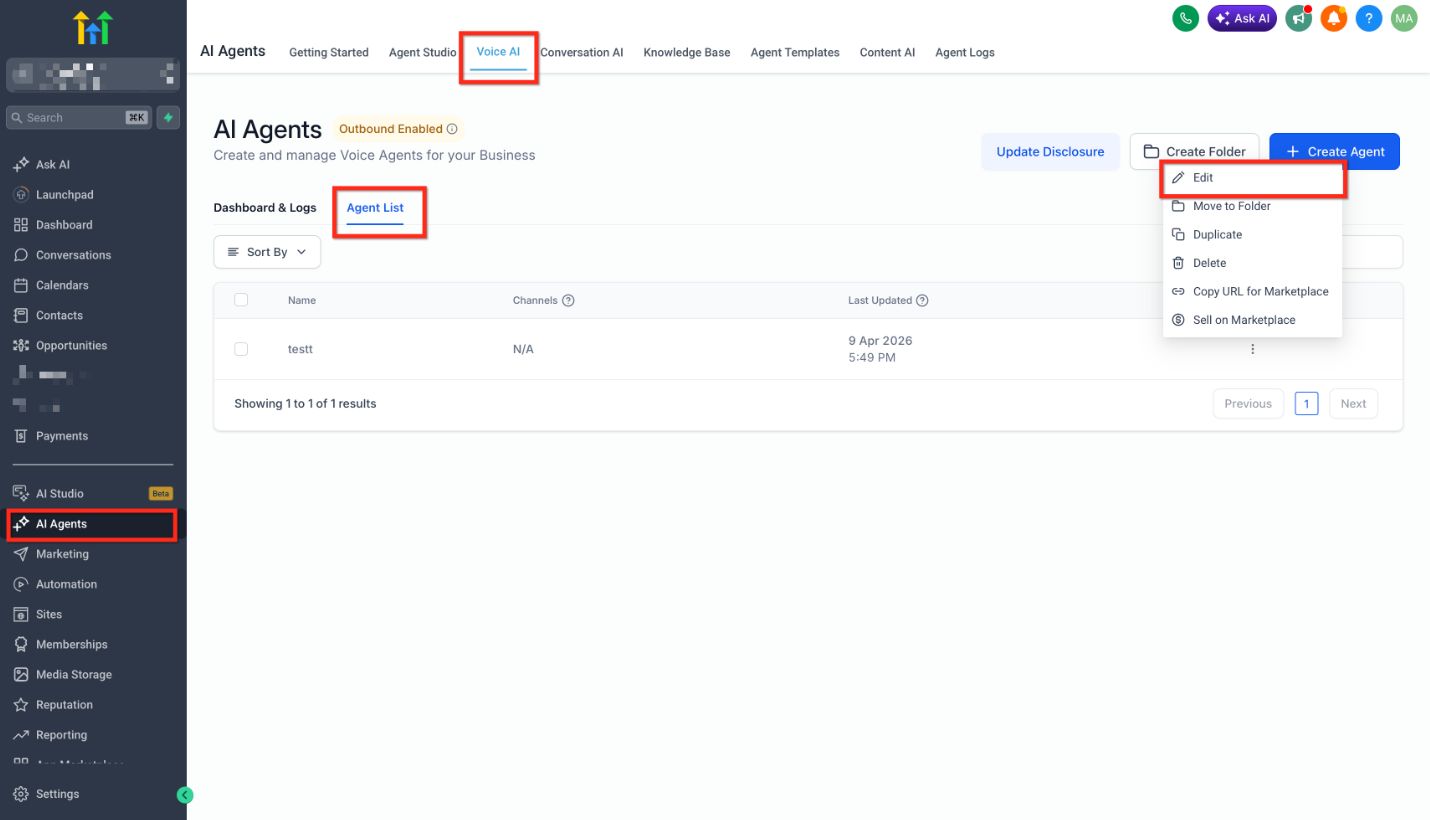
HighLevel’s public example of the Voice AI settings and action menu. Source -
Book against one authoritative calendar Connect availability and conflict checksCollect qualifications before bookingKeep booking ownership in one system
HighLevel's Voice AI booking supports calendar selection and qualification before appointment booking. Configure a suitable calendar with real duration, buffers and conflict calendars. Confirm your field-service system receives the appointment through a tested integration or a clear manual handoff.
Choose which system creates the job. If the assistant books an appointment, the follow-up workflow should update that booking using its appointment ID. A second workflow that creates another job from the call summary can duplicate the visit. When synchronization fails, send a review task and keep the customer status accurate.
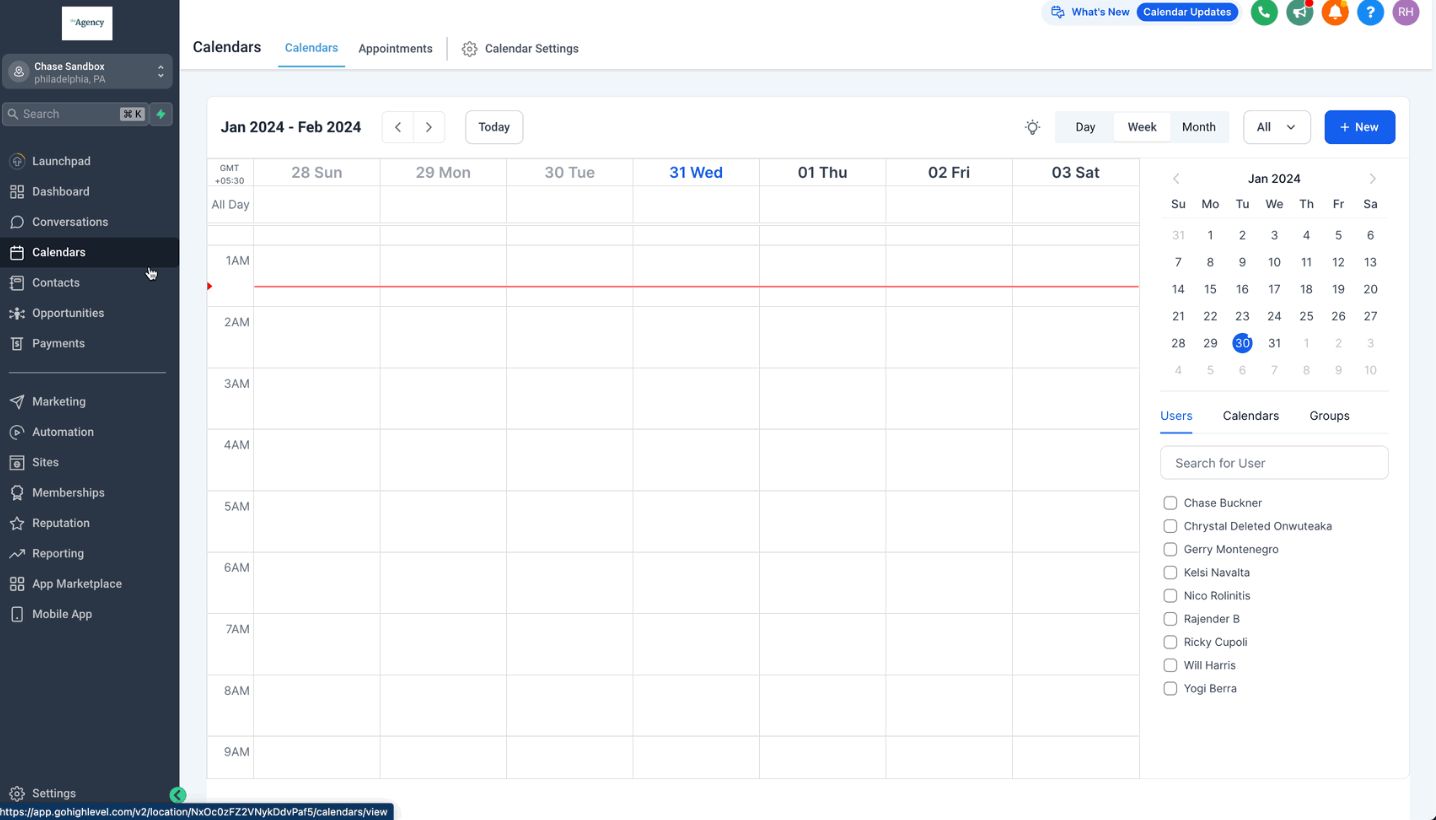
HighLevel’s internal calendar view. After a test booking, check that the appointment appears in the correct calendar. Source -
Reconcile repeat calls and verify booked work Match existing requests before creating jobsConfirm address and time aloudReview unique completed jobs
Check for an existing request using the callback number, service address and active project. A repeated call about the same door should update that request. Route uncertain matches to the office, particularly when a shared phone number covers several properties.
Test a new booking, repeat call, reschedule, full calendar and failed transfer. Confirm the appointment appears once, at the correct local time, with the right address. Check notification consent before sending texts.
Each morning, review unique after-hours callers, qualified requests, confirmed appointments, completed jobs and duplicate corrections. Compare the call transcript with the final CRM record.
Keep unbooked repair-page visitors in a separate review queue. If PipelineOn is already live, check available matches against your after-hours bookings and open jobs before assigning extra follow-up. Use only the records that fit your service territory and channel rules.
What to measure
Run the first after-hours window with a person reviewing every handoff. Expand the assistant's booking authority only after the calendar, transfer and duplicate checks work on real inbound calls.