Set up photo intake for garage door replacement quotes
Your office needs to see the opening and understand the replacement request before sending the right person. Put the photo instructions on your replacement page, let homeowners submit without a photo and test that the estimator can open every file that arrives.
Steps
-
Define the replacement request your form can handle State the service area and what happens after submission.Give urgent repair callers a staffed phone path.
Use a garage door replacement page with contact details, service address, number of doors, requested change and an unsure option. Explain who reviews the request and when the homeowner can expect an answer. Your office should confirm measurements before treating the request as a final installation quote.
Ask for a wide photo taken from a safe standing position and any existing design reference the homeowner already has. Keep photos optional. Tell people to leave damaged hardware alone and use your actual phone route when they need urgent help. The form should never ask them to lift a failed door or dismantle anything.
-
Build the upload and carry a source label Add an optional image-upload field.Pass a campaign label into a hidden form field.
For a Tally form, type /file to add the upload block. Set allowed image types and an appropriate file-size limit for your account. Keep the homeowner's written request usable when a file cannot upload. Check Tally's current limits before publishing the instructions.
Add a hidden field named intake_source and pass a value such as garage_replacement_page in the form URL. If the form is embedded, follow Tally's embedded-form parameter instructions and test the saved value. A source label describes where the request came from. Keep personal details out of the URL.
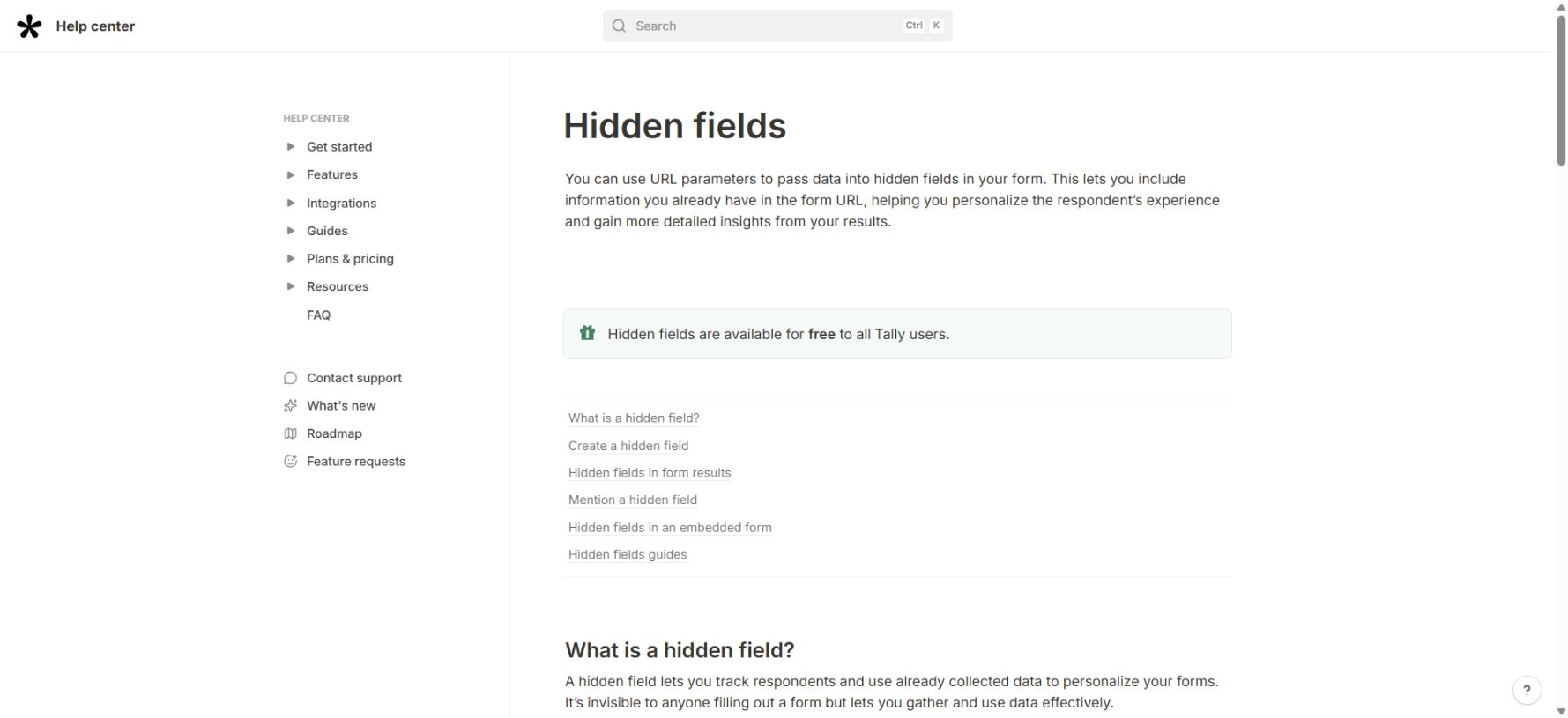
Tally’s public documentation shows how to carry a campaign label into a submitted form. Source -
Test the published form and the estimator's access Submit from a phone with and without photos.Open the delivered record using the estimator's normal access.
Submit a clearly labeled test from the published replacement page on a phone. Try a supported image, an oversized file and a submission without a photo. Confirm that a rejected upload has a useful message and does not erase the other answers.
Open the accepted submission in the office destination and check the address, source label and files. Have the estimator use their normal account or device to open the photos. Check any CRM handoff separately. Assign a manual transfer if the connection is unverified, and confirm the homeowner sees the promised next step.
-
Review the request before offering a visit Check territory, existing jobs and the requested replacement.Record which requests reach an attended assessment.
Assign one person to confirm the address and requested work, then check for an existing quote or job. Mark photos reviewed only after someone has opened them. Ask for missing details by the contact method the homeowner provided and confirm availability before offering a visit.
If PipelineOn is already live on the replacement page, review available additional homeowner matches separately. Check existing inquiries before assigning eligible follow-up. Keep the submitted photo request as its own evidence, and count scheduled visits, attended assessments and accepted replacements from the actual job records.
What to measure
Review accepted requests, accessible photo sets, callbacks needed and attended replacement assessments. Repair the upload or handoff when the estimator repeatedly lacks something the homeowner already submitted.