Build a restoration project page from work you can document
A useful restoration project page shows what your team was asked to do, what it completed and where its scope ended. Build it from records you can verify and photos you have permission to share. Then give a suitable reader a clear route to your office.
Steps
-
Choose a completed scope with publishable evidence Have the project manager verify the work described.Obtain permission and remove identifying details.
Choose a project with a clear service scope and records the manager can review. Confirm the reported incident, work your company performed and documented completion. Separate mitigation, contents work and reconstruction where their outcomes differ.
Check the customer's permission for each photo and description. Remove addresses, documents, faces and identifying belongings as needed. Avoid claim amounts, health conclusions or a diagnosis your records do not establish. Keep the approved evidence and publication permission with the draft.
-
Explain the job questions a future customer will recognize Describe the actual service and operational constraints.Use only supported location and outcome details.
Write the page around the problem reported to your team, the assessment you performed and the accepted scope. Explain the handoff between phases and any boundary that a future customer should understand. Use the terminology your project manager can defend.
Link it from the relevant service page and use the real service area only where accurate. Google's helpful-content guidance asks for useful, reliable material with clear evidence and experience. A documented job can support that purpose. It does not guarantee a search ranking.
-
Give the project page a tested inquiry route State real response availability and service territory.Save the project-page label with accepted requests.
Give the reader a phone path and a request form consistent with your actual coverage. State who reviews the request. Let customers describe the current incident in their own words and use your approved human escalation process where appropriate.
For a Tally form, add a hidden source field and pass a neutral project-page label through the URL or supported embed setup. Keep the original customer's details out of it. Submit a labeled mobile test and inspect source, office delivery and the promised confirmation.
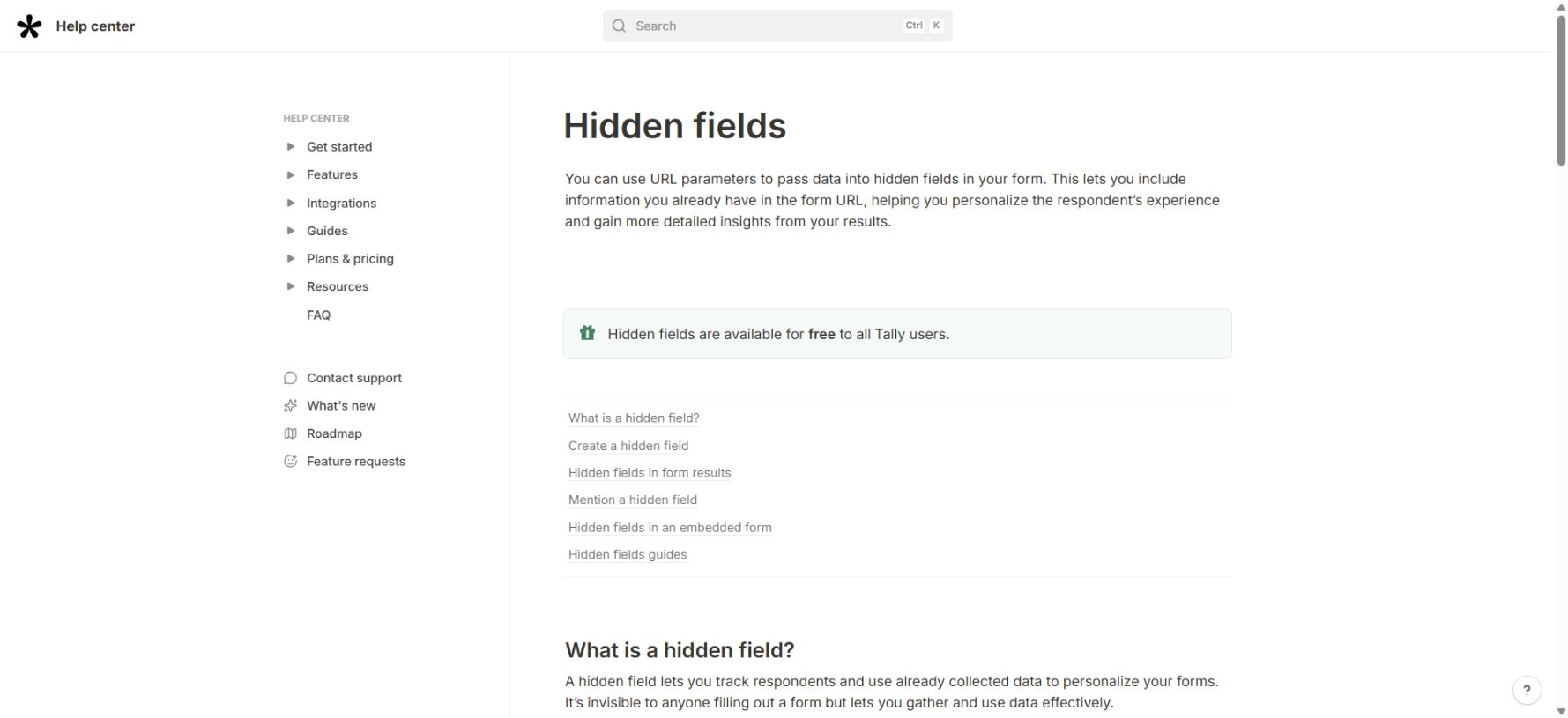
Tally’s public documentation shows how to carry a campaign label into a submitted form. Source -
Review search visibility and verified inquiries separately Filter Search Console to the exact project page.Use office outcomes to judge the requests it produces.
In Search Console's search performance report, inspect the page's impressions, clicks and available query data over a stated period. Keep that report separate from accepted requests and attended assessments. A search click does not establish a new loss or a qualified job.
Check the actual inquiries carrying the project-page source and follow them to their confirmed outcomes. If PipelineOn is live, additional matches remain a separate review source. Use the manager's feedback and real customer questions to improve the page without inventing another project or changing its facts.
What to measure
Keep the approved project evidence with the published page. Review whether readers ask about work your team actually offers and whether their requests reach the right person.