Test CallRail on an HVAC branch number and booking subdomain
Your main office number can swap correctly while a second branch button still dials the wrong line. Test the visible number, the tap-to-call destination and an actual call on each page your homeowner uses. Then verify which branch received the request.
Steps
-
Map each branch number to its actual destination List visible numbers and phone links on both hosts.Keep branch routing distinct in your tracking configuration.
List the main website, booking subdomain, main office number and second branch number. Open every header, footer and contact button to record the displayed number and its phone-link destination. Assign someone from each branch to confirm where a test call should ring.
In CallRail, distinguish the swap target shown on the page from the destination that receives the call. Multiple swap targets can replace several published numbers with one tracking number. Use that configuration only when those numbers should share the same call destination. Have your administrator configure separate routing where the branches need different destinations.
-
Verify the script on the booking subdomain Check the correct CallRail company script on both hosts.Walk from the campaign page to the subdomain in one test visit.
CallRail gives each company its own JavaScript snippet. Have your web person verify the intended script on both the main site and the booking subdomain. Check the published pages after the site's privacy controls allow the relevant tracking.
CallRail documents cross-subdomain tracking by default. Test your actual path from a tagged HVAC page to the booking subdomain and inspect the expected number behavior. An external booking domain needs its own supported setup review. A working subdomain test does not establish tracking across an unrelated domain.
-
Place a real test call to the second branch Check both the displayed number and the mobile phone link.Confirm the receiving branch and inspect the actual call record.
From a fresh test session on a phone, follow the campaign path, tap the second branch button and complete the call. Identify it as a test to the receiving staff member. Repeat on the booking subdomain and record which number appeared, which number was dialed and which office answered.
Open the resulting CallRail call and inspect the available visitor timeline. Check the page path and source evidence against your test notes. The screenshot shows a public timeline example. It cannot verify your installation. If the call arrived without browsing evidence, preserve the call and repair the tracking separately.
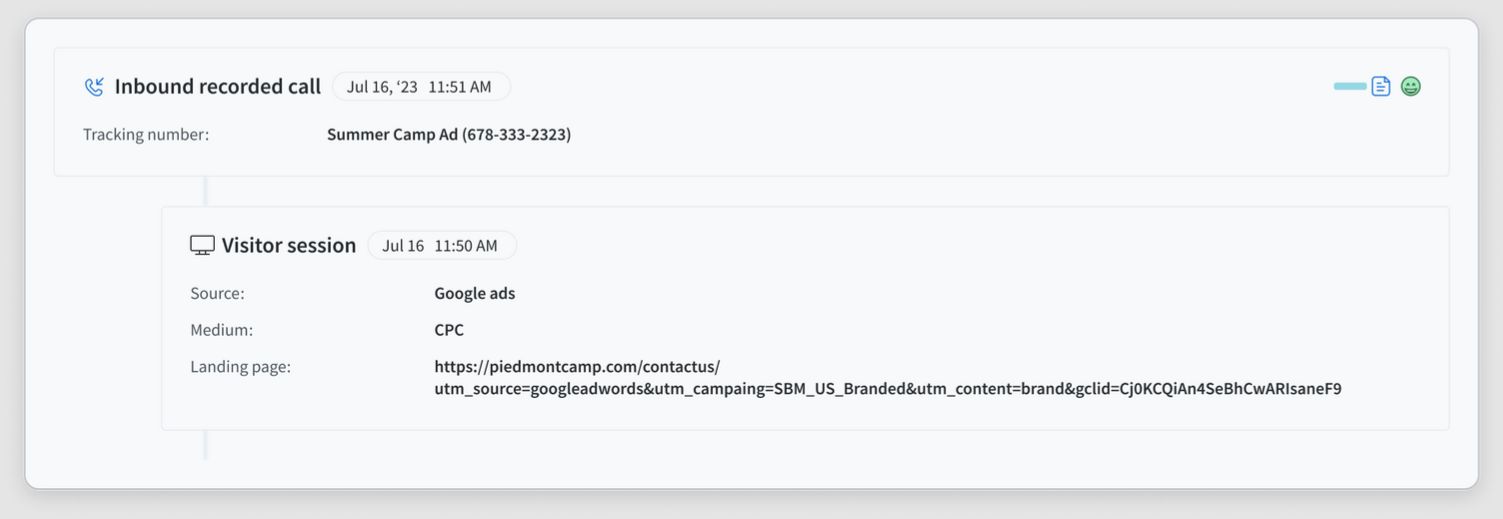
CallRail’s example of the visitor session attached to a tracked call. Source -
Separate phone-button activity from service requests Keep tap-to-call as a diagnostic event.Let the office confirm the request, branch and next action.
A phone-button tap can open a dialer without producing a call. Keep its analytics event separate from received calls. Have the office classify actual calls as service requests, existing-job questions, spam or unknown, using the call and CRM record.
If PipelineOn is live on either host, review its available homeowner records separately and check installation on the additional host. Attach context only when reliable details support the connection. Count unique qualified requests and attended appointments after office review. Preserve unknown outcomes until someone resolves them.
What to measure
Retest both branch paths after changes to the header, booking host or phone configuration. Keep the test call notes with the routing owner so the next change has a known result to compare.