Carry entry-door Messenger preferences into a verified measurement
An entry-door conversation can mix design preferences and a request for measurement. Save both before sending a calendar link. Your estimator still needs to confirm actual opening and installation scope.
Steps
-
Ask what the customer wants to replace Collect property and door positionKeep measurements optional
Record the door, preferred outcome, service area and callback details. Let rough dimensions remain unknown.
Keep reported access concerns on your actual staffed service route. Avoid security-sensitive instructions or technical guarantees through the conversation.
-
Verify Messenger reaches the office Test the actual business PageSave the request and owner
HighLevel documents receiving and replying to Messenger in Conversations. Test both directions on your connected Page.
The shared screenshot shows its example inbox. Verify your own property, preferences and conversation reference before offering dates.
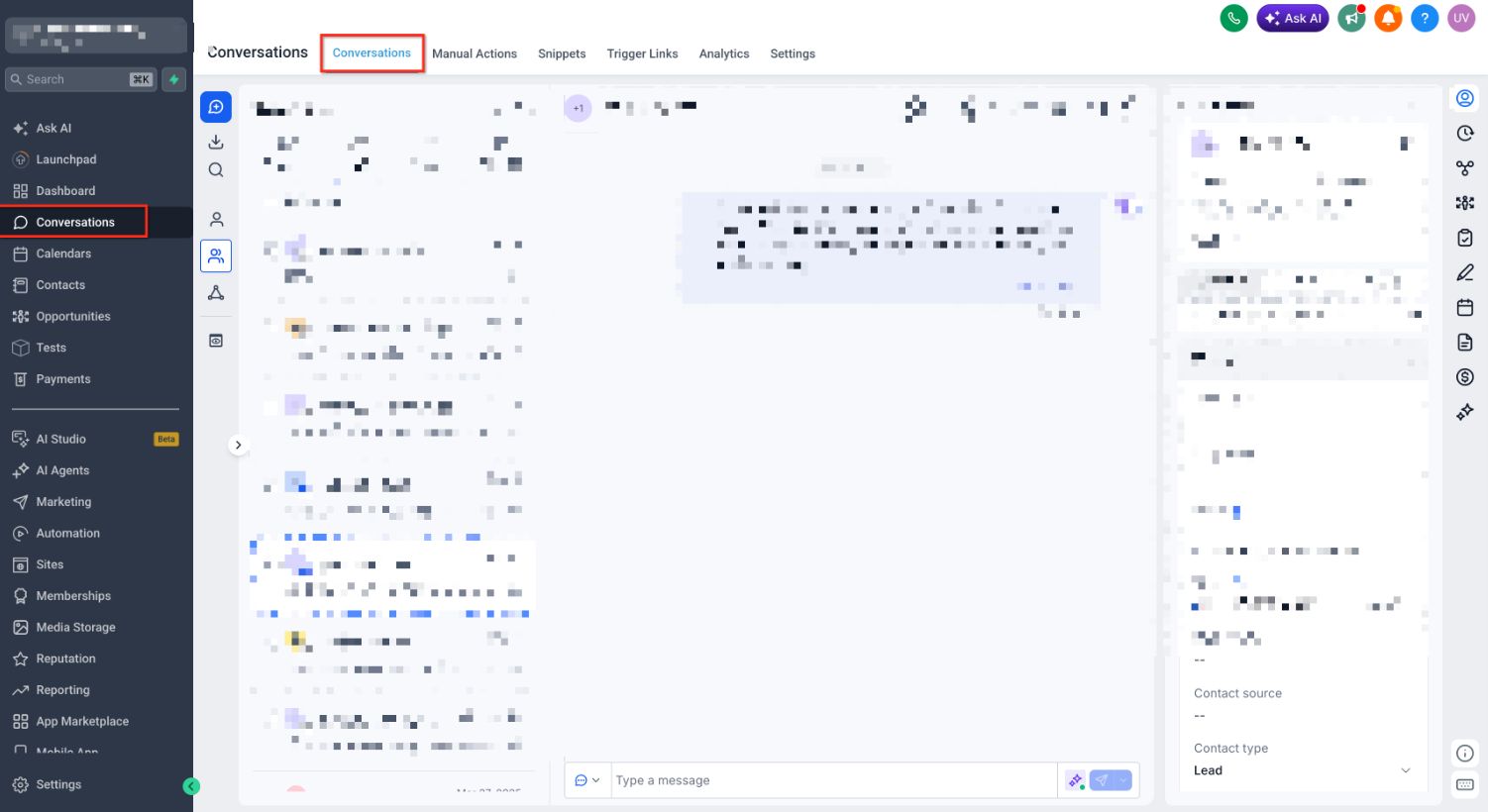
HighLevel’s example shows where incoming Messenger threads appear in Conversations. Source -
Offer the relevant site measure Explain assessment terms and scopeCheck for an existing door project
Send the page describing door measurements and available options. Have the office confirm coverage, authorization and a real slot.
Run a controlled booking and inspect estimator, local time and transferred notes. A link click is separate from a saved measurement appointment.
-
Review the nonbooking branch Check calendar and recent conversationsRespect current messaging limits
Before another message, check whether the customer booked through a different route or already spoke with staff. Use the permitted channel process.
Track unclear terms, no workable date, unsupported scope and no response. Measure attended visits and approved installations.
What to measure
Review a small set of nonbookers with the estimator. Improve the handoff around the unanswered question or timing issue that actually stops measurement.