Rebook a weather-disrupted roof assessment day with clear customer status
Weather changes a day's roof assessments and the office sends several rounds of messages. Keep every customer clear about whether they have a confirmed new visit.
Steps
-
Have the field lead decide the disruption Identify the affected appointmentsUse the company's safe-work decision
The qualified field lead should determine which assessments cannot proceed. Record the decision and affected appointment references.
Keep an active customer concern on its appropriate intake path. Rescheduling an assessment does not resolve a reported leak.
-
Separate proposed and confirmed times Use the actual estimator calendarPreserve appointment references
Inspect the real calendar before offering replacements. The shared HighLevel calendar illustrates the booking surface and does not prove weather readiness.
Test a staff reschedule through the customer link and check the original appointment, new record and reminders.
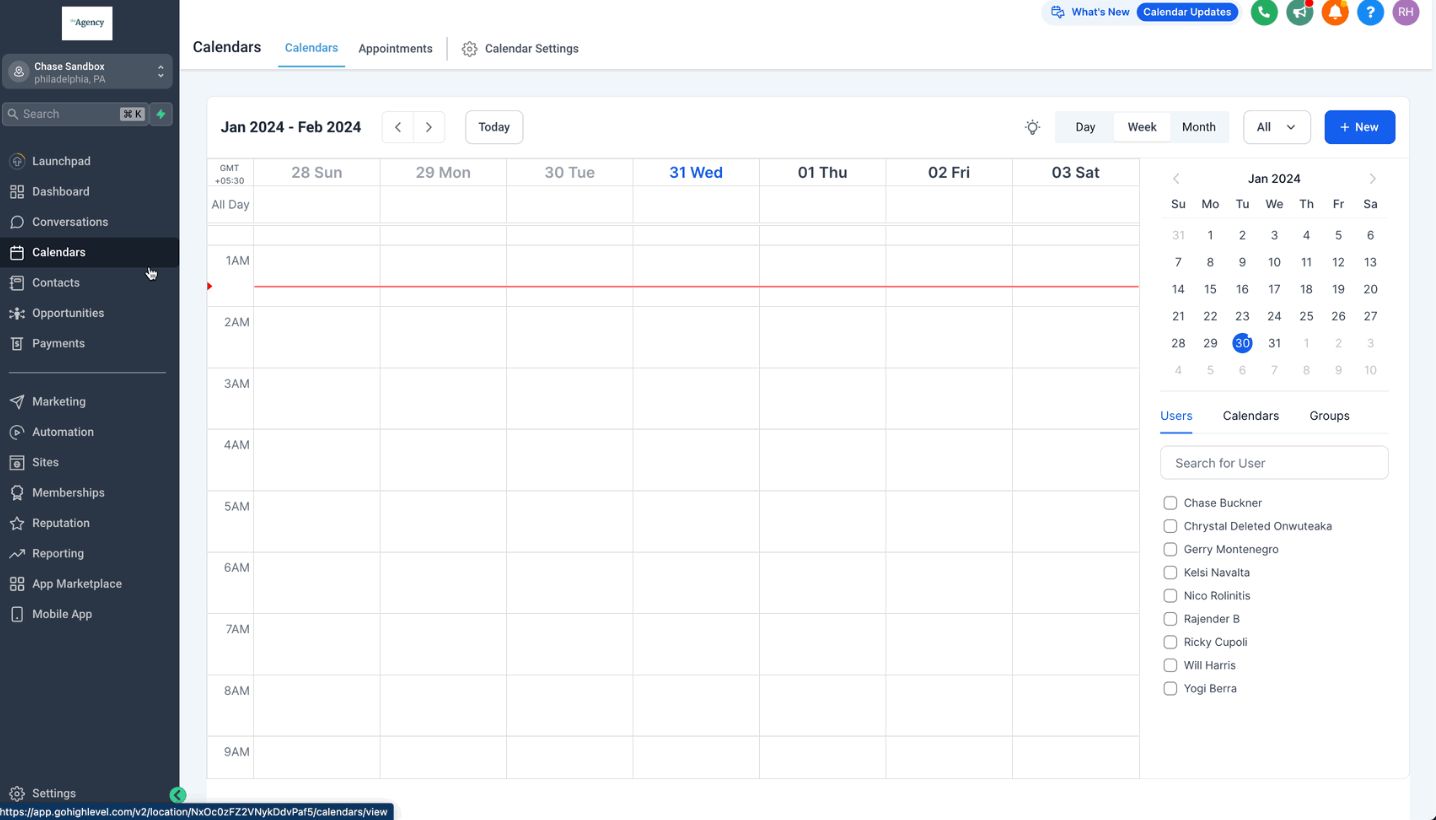
HighLevel’s internal calendar view. After a test booking, check that the appointment appears in the correct calendar. Source -
Send a clear individual update State the current appointment statusAsk for acceptance of the replacement
Tell each customer whether the visit is canceled, awaiting a new time or confirmed. Use a monitored business contact route.
Confirm address and access arrangements before accepting the new window. Keep one office owner for customers who have not replied.
-
Reconcile the next day's list Check every affected customerMeasure unacknowledged changes
Compare the original affected list with the replacement calendar and unresolved contact queue.
Track duplicate visits, customers left without an update and reminders sent for old times. Correct the specific failure before the next disrupted day.
What to measure
Finish with a reconciled appointment list and an owned action for every unresolved customer. A bulk message alone does not complete the reschedule.