Check cleaning payments against the appointments your crew can cover
A successful payment needs a cleaning appointment your office can find. A calendar hold needs the payment status your terms require. Put those records together before your crew receives the job, especially when the customer closes the browser after checkout.
Steps
-
Define what the customer is paying for State the cleaning scope and booking terms.Choose who confirms the appointment.
Write down whether checkout collects a deposit or the full agreed amount. Show the accepted cleaning scope, service area and the next confirmation step. Make exclusions and the process for changed scope clear before the customer pays.
Choose the system that owns appointment availability. Give the office a way to match the payment, service address and requested visit using a stable booking reference. Keep requested time, held time and confirmed appointment as separate states your staff can explain.
-
Verify payment through the provider's actual record Check payment status before confirming under your terms.Use a supported payment notification for automation.
If you use Stripe Checkout, its fulfillment guidance explains why a success-page visit alone is insufficient. A customer can pay and lose the connection before returning to your site. Have your web person use the supported payment records and notifications, including delayed-payment outcomes where relevant.
For a manual pilot, have the office inspect the actual payment record and booking reference. For automation, have the developer make repeated notifications safe to process without creating another appointment. Keep card details inside the payment provider's supported checkout.
-
Test payment and calendar outcomes together Use test mode for successful, failed and repeated events.Inspect the saved appointment and assigned crew.
Run a test payment, an abandoned checkout and the failure cases your payment setup supports. Check that a success-page refresh cannot add another job. Have your developer test repeated payment notifications and confirm that a pending payment cannot silently become a paid booking.
Open the real scheduling record for each test. Check date, local time, address, scope and assigned crew. The HighLevel screenshot shows an internal calendar view, useful for understanding the appointment check. It does not demonstrate a payment connection. Verify that connection in your own account.
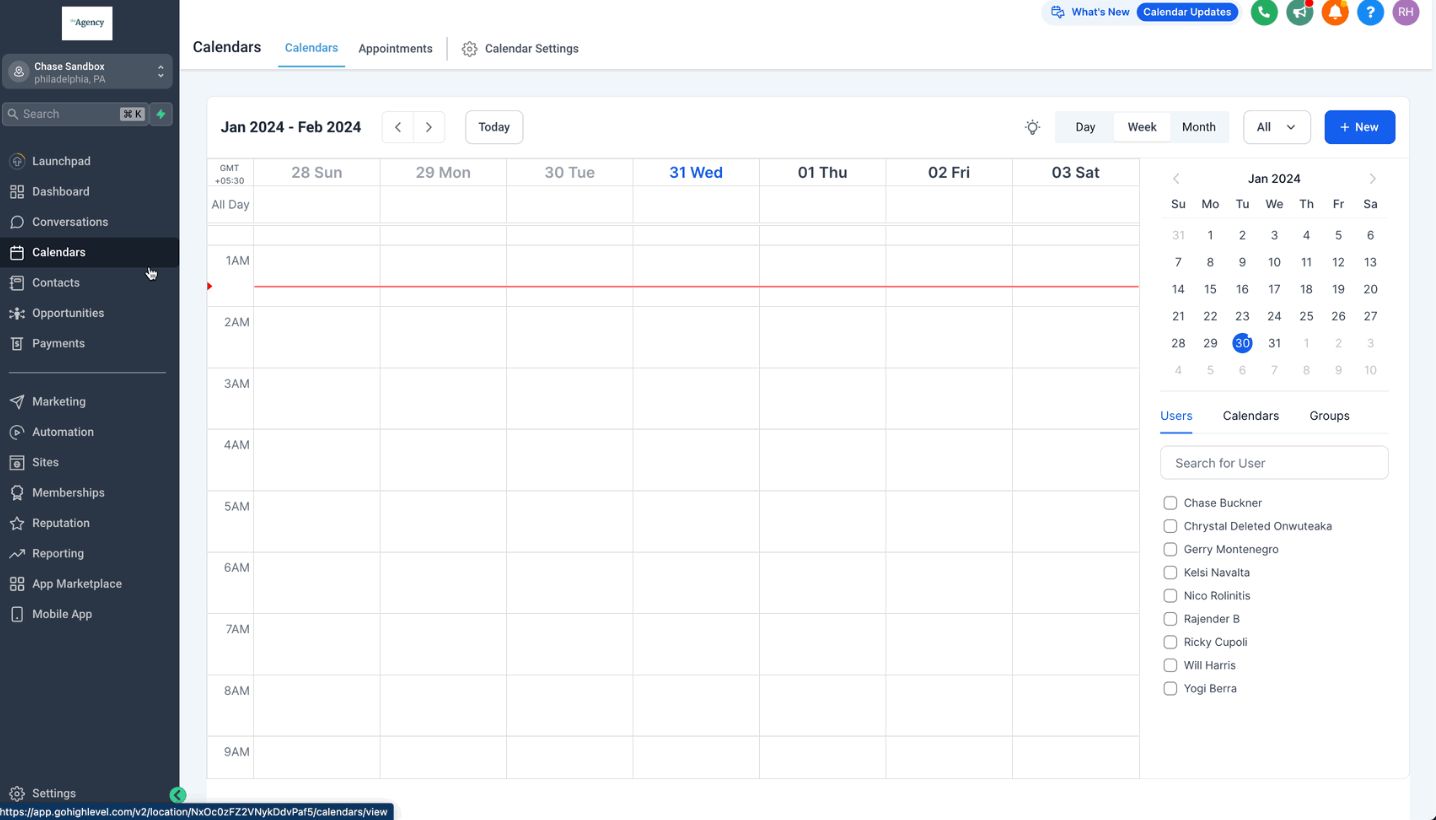
HighLevel’s internal calendar view. After a test booking, check that the appointment appears in the correct calendar. Source -
Resolve paid requests without workable appointments Give every mismatch an office owner.Track completed paid cleans from reconciled records.
Review payments without confirmed visits and visits missing the required payment. Assign a person to contact the customer through the booking details and resolve the mismatch under your published terms. Record any reschedule, cancellation or refund in the owning systems.
Keep checkout starts, payments, confirmed appointments and completed cleans in separate counts. If PipelineOn is live, additional website matches remain a review list. They establish neither a paid booking nor permission to collect payment. Reconcile accepted requests before giving the crew its work orders.
What to measure
Check paid-but-unconfirmed requests before each dispatch cycle. Repeat the test whenever checkout, payment notifications or appointment ownership changes.