Turn property-manager referrals into unit-specific appliance work orders
A property manager can request several appliance visits at one street address. Keep each unit and appliance clear from the first request. Give the manager a site form that separates the person authorizing work, the access contact and the information your technician needs.
Steps
-
Agree the referral and authorization process Define supported appliances and territoryIdentify who approves paid workExplain diagnostic and approval terms
Give the partner a page describing the services and areas your shop covers. Explain diagnostic fees, how repair approval is obtained and how the office confirms a visit. Use your actual agreement instead of assuming all referrals share the same terms.
Identify who can authorize the requested service and who supplies access arrangements. Keep occupant contact details limited to what the service team needs and use the partner's authorized sharing process. A referral alone does not approve every repair.
-
Build one request per unit and appliance issue Require a unit identifier where relevantCollect appliance and reported symptomKeep payer and access contact distinct
Collect property address, unit, appliance type, model if known, reported issue, authorizing contact and access contact. Add the partner's work-order reference when one exists. Allow an unknown model instead of a guessed value.
HubSpot forms can create or update CRM records. The shared form-editor screenshot shows where fields are configured. Test how your actual workflow stores unit and work-order details, especially when several requests share the manager's email address.
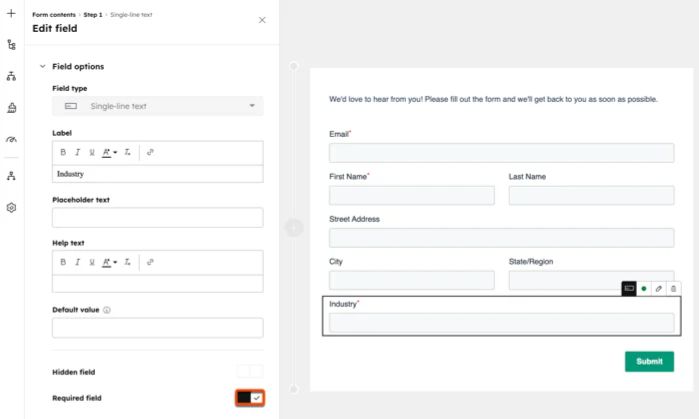
HubSpot’s form editor shows the Required field control for a form field. Source -
Reconcile the request before scheduling Check unit and partner referenceLook for an open repairConfirm access and approval limits
Search for the same property, unit, appliance and partner reference before opening a job. Repeated submissions about the same issue should update the existing request. Separate another unit or a different appliance after verifying the details.
Have the office confirm authorization, any agreed approval limit and access arrangements. Give the technician the reported symptom and available equipment details. Keep the occupant's availability separate from the manager's authorization to pay for work.
Use PipelineOn page activity only as optional context for a known partner referral. A matching property may contain several units, so inspect the submitted unit and work-order reference before linking the visit to a dispatch record.
-
Close the loop with the correct partner record Record diagnosis and approval separatelySend authorized service updatesTrack completion and payment by job
Record the diagnostic outcome, quoted repair, approval and completed work on the unit-specific job. Send only the status information the partner is authorized to receive. Retain the original work-order reference on invoices and follow-up.
Measure accepted requests, correctly matched jobs, completed diagnostics, approved repairs and payment. Review duplicate work orders and unit corrections. Improve the partner page when the same missing detail repeatedly delays a visit.
What to measure
Test two units under one manager email and one repeated request. Your office should end with the correct separate jobs and a single record for the repeated issue.