Keep appliance model-photo requests working on mobile
A customer can know which appliance failed without knowing where to find its model number. Give the service page a usable request path before asking for a photo. Your office can gather missing details afterward and let a technician decide what the first visit should cover.
Steps
-
Explain the appliance and brands your shop services Match the page to supported repairsState territory and diagnostic termsOffer an unknown-model option
On the relevant appliance page, list supported services, brands and coverage. Explain how the diagnostic fee works and when the customer receives a repair quote. Make a request possible without a guessed model number.
Link to the manufacturer's actual label-location guidance when useful. GE provides a model and serial-number locator organized by appliance type. Use the matching manufacturer's instructions and request only information that is safely accessible.
-
Make the model photo optional Collect property and reported symptomAllow typed model informationPreserve a no-photo submission
Ask for contact details, service address, appliance type, brand if known and the reported symptom. Offer typed model information or an optional label photo. Keep repair instructions and diagnosis out of the intake form.
Tally supports file uploads, with limits depending on the account. Test your actual accepted formats and sizes. Carry a neutral appliance-page source label into a hidden field so the office knows which request page the customer used.
The shared Tally documentation screenshot shows that source-label mechanism. Configure and test the source field in your own form alongside the separate upload control. Keep personal information out of campaign URLs.
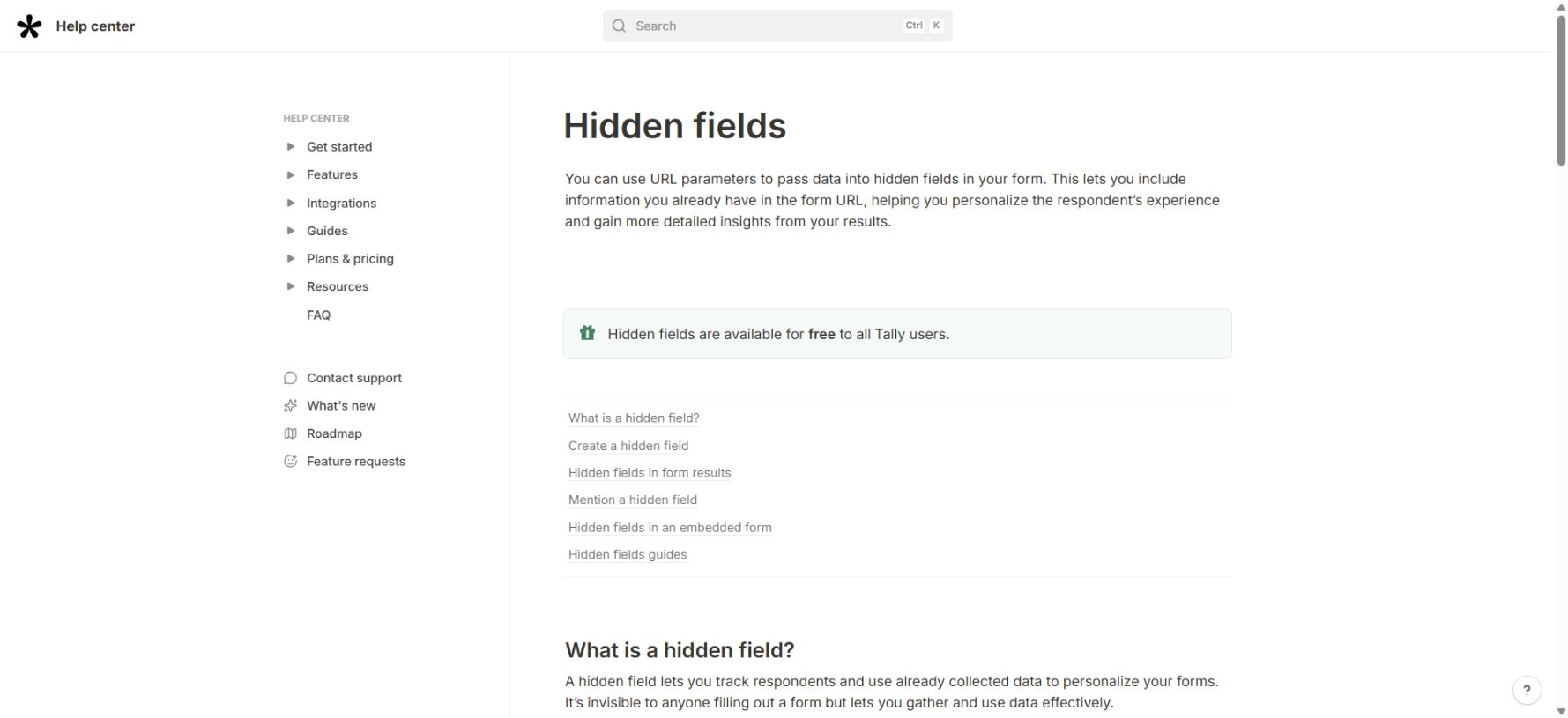
Tally’s public documentation shows how to carry a campaign label into a submitted form. Source -
Test the request with realistic phone images Submit with and without a photoCheck large-image errorsInspect the office record
Use a staff-controlled phone to submit a clear label image, a larger image and a request without any upload. Check the confirmation and ensure errors explain the next step without losing entered contact details.
Inspect the CRM or work-order record after each accepted submission. Confirm the image opens for the technician, the symptom is readable and the correct person owns the callback. Avoid leaving a failed upload looking like a completed request.
If an available PipelineOn match returns to the model-photo instructions and the address and contact details agree with an open request, have the original owner check whether the photo arrived. A page visit alone cannot supply a model number or confirm an upload.
-
Track diagnostic visits and actual repairs Verify service and brand fitDistinguish diagnosis from repairRecord preventable return visits
Have the office confirm territory, supported equipment and appointment purpose. Let the technician review available model information before any parts promise. Attach the information to an existing job when the customer is following up.
Measure accepted requests, booked diagnostics, completed visits, approved repairs and paid work. Record missing-information delays and return trips. Use those outcomes to improve the page and upload route before increasing traffic.
What to measure
Keep one successful mobile test and one no-photo test as your reference. A customer with incomplete equipment information should still have a clear path to your office.