Find roof estimate bookings lost between the calendar and CRM
A homeowner can reach the end of your embedded calendar while your roofing office still lacks an assigned estimate. Trace the booking across each system before changing the page or sending another reminder. The calendar entry, CRM opportunity and customer confirmation each need their own evidence.
Steps
-
Test the embedded calendar from the roof estimate page Use a staff-controlled contactCheck the embedded calendar IDSave the booking reference and local time
Open the actual estimate page on a phone and complete a test booking. Record the contact details, appointment time, timezone and any reference returned. If the embed cannot load, test the direct booking link to isolate the page integration.
HighLevel documents obtaining the embed from the selected calendar's Share menu. Compare that calendar with the one your roofing workflow expects. The shared screenshot shows a HighLevel example calendar. It cannot verify which calendar is embedded on your site.
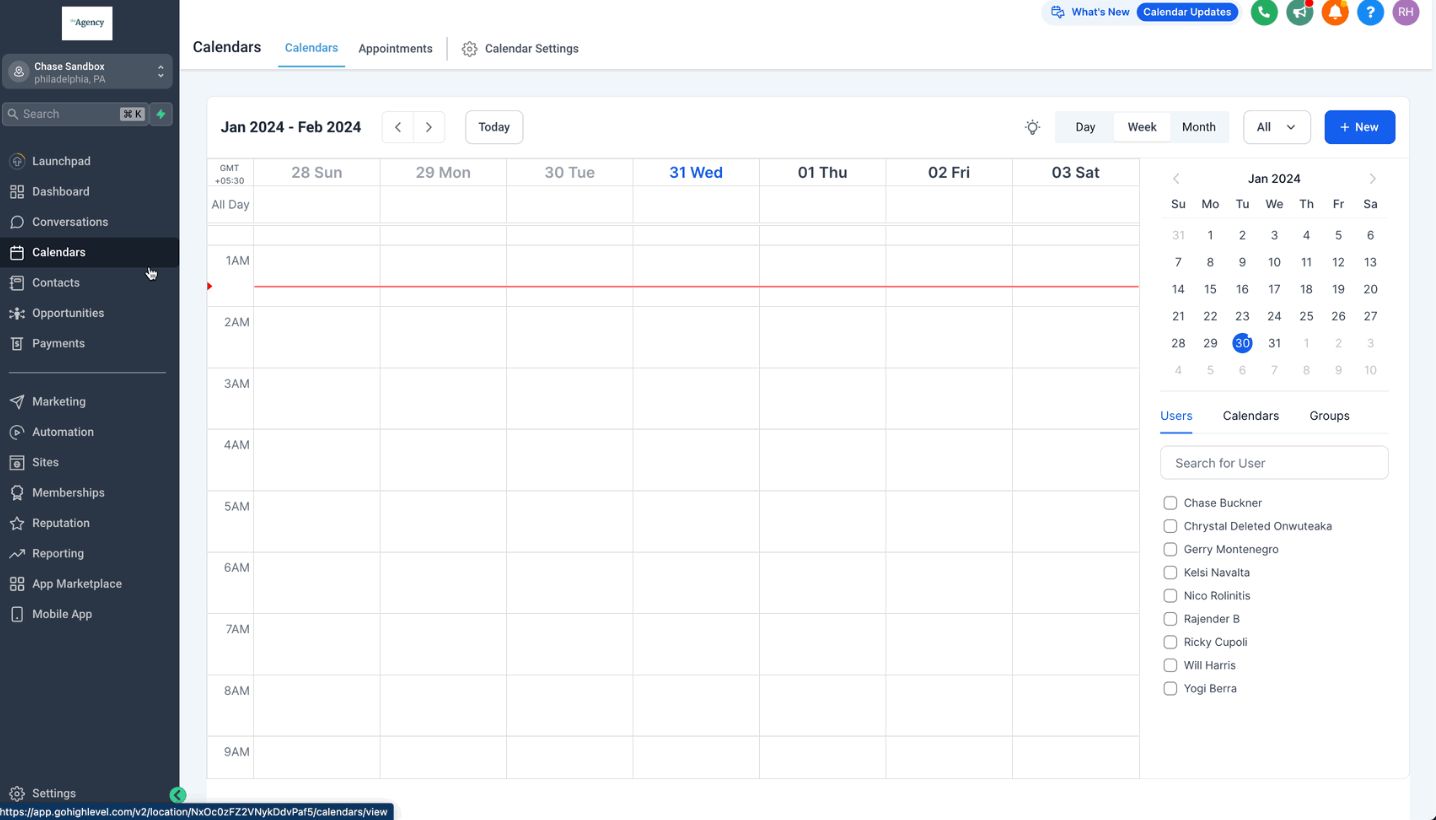
HighLevel’s internal calendar view. After a test booking, check that the appointment appears in the correct calendar. Source -
Find the appointment before creating anything else Search the calendar and contactConfirm status and assigned estimatorCheck for an existing opportunity
Search the selected calendar using the test contact and time. Verify the appointment exists, its status is appropriate and the assigned estimator can see it. A thank-you screen alone cannot prove the office received a usable booking.
Search the CRM for the same contact and property. Inspect any open roof estimate and check whether the booking was attached. Avoid creating a second appointment to fix a missing CRM link. Preserve the original appointment reference while repairing the handoff.
-
Inspect the workflow and opportunity assignment Match the public-booking triggerReview enrollment and action logsConfirm one opportunity owner
For an independent HighLevel customer booking, check Customer Booked Appointment and the intended calendar filter. Inspect enrollment and execution logs to identify whether the event failed to enter or a later action failed. Review the action that creates or updates the roofing opportunity.
If your CRM is Pipedrive, the shared deal-stage screenshot shows where an opportunity sits in a pipeline. Check your own deal, owner and appointment note after the integration test. Staff-entered fallback bookings need their own tested trigger path.
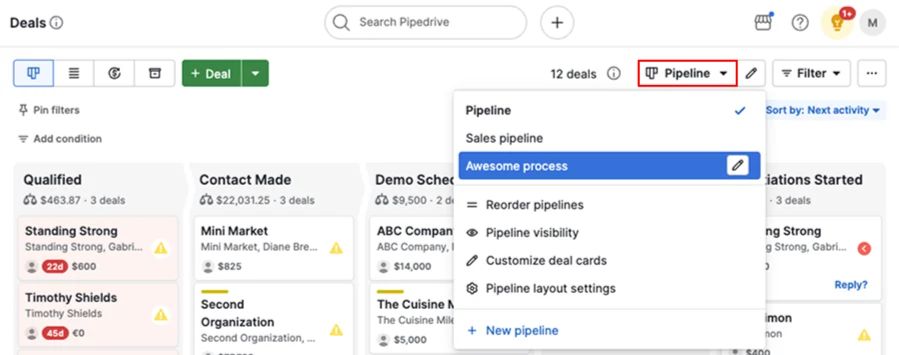
Pipedrive’s sample deal board shows the pipeline selector. Open the pipeline that contains the original proposal. Source -
Reconcile confirmation, changes and completed estimates Verify the confirmation actually arrivesTest cancellation and reschedulingCompare calendar and CRM counts
Check the test inbox and any authorized notification channel for the correct address, time and next steps. Test a reschedule and cancellation. Confirm that the office record changes and that only the intended confirmation route sends a message.
Each day, compare new roof appointments with assigned CRM opportunities and delivered confirmations. Give exceptions to one office owner. Track attended estimates and proposals after repairing the handoff so bookings can be assessed against actual roofing work.
What to measure
Keep a successful test booking and its record IDs as the reference. Repeat the check after changing an embed, calendar, workflow or CRM connection.