Check flooring search traffic after moving a service page
Moving your hardwood page can leave the office wondering whether a quieter week came from the new URL or something else. Keep the old-to-new map, compare the search evidence and test the actual estimate request before changing the campaign.
Steps
-
Save the old URL, new URL and move date Map the old service page to its real replacement.Check the redirect and internal links.
Record the exact former flooring URL, the intended replacement and the release date. Keep a copy of the original page's title, service scope and inquiry path. Note any simultaneous changes to the offer, territory, form or call number that could affect inquiries.
Have your web person check the redirect, the new page's canonical and the internal links pointing to it. Google recommends mapping old URLs to their appropriate replacements during a URL move. A redirect to an unrelated homepage cannot give a hardwood shopper the same service information.
-
Compare the two URLs with consistent report settings Use Search Console page and date filters.Keep device, country and search type consistent.
In Search Console's search performance report, inspect the old and new page URLs over stated periods around the move. Export the settings and visible query rows. Check clicks and impressions for the service queries you intended the page to answer.
Inspect the exact query and page filters you applied before reading a difference as lost demand. Google's reporting guidance explains that filtering and omitted anonymized queries can affect totals. Keep the unfiltered page totals and filtered query view clearly labeled. Search performance alone does not count accepted estimate requests.
Inspect both addresses in URL Inspection and record the canonical Google selected for each one. Search Console generally credits page performance to the canonical. Review the combined history for both addresses before treating a transfer in reported clicks as lost demand.
-
Check discovery queries separately from company-name searches Review flooring service phrases in the Query filter.Use branded and non-branded options only where available.
Open the Query filter and inspect phrases relevant to the moved service, such as hardwood refinishing or engineered wood installation when your company offers them. Check which URL appears for each phrase. The screenshot shows Google's keyword and branded-query filter options.
Google's branded filter is limited to eligible top-level properties with enough query and impression data. It can misclassify queries. When available, use it to review discovery separately from company-name traffic, then inspect important query rows yourself. When absent, use a clearly documented keyword filter without calling it equivalent to Google's classification.
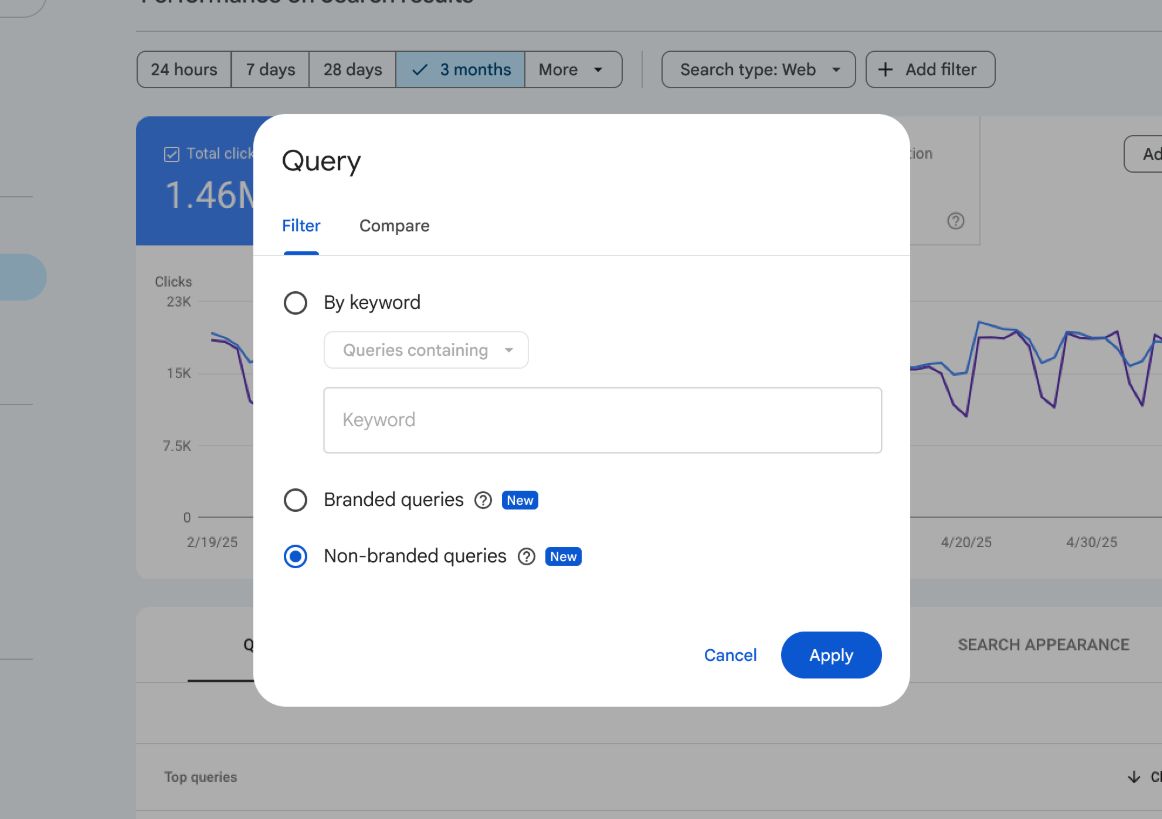
Google’s cropped Search Console example shows where to filter by keyword or choose branded and non-branded queries for an eligible property. Source -
Test the moved page's estimate path and office record Submit from the published new page on a phone.Follow actual inquiries to attended flooring measures.
Open the old link, follow its redirect and submit a labeled test through the new page. Check the office notification, service scope and saved source. Test phone links separately. Repair delivery or routing failures before treating lower inquiry counts as an SEO problem.
Compare accepted inquiries and attended measures with the search report using the same reporting period and normal sales lag. If PipelineOn is live, verify that tracking and any collection page rules cover the new path. Available visitor activity supplies additional context. It cannot establish why a search ranking changed.
What to measure
Keep the URL map, report exports and successful test request with the release record. Recheck after Google has had time to process the move and your inquiries have reached their appointment outcomes.