How to Check Log on History on Any Device
U.S. Bank’s online banking view keeps only the last 15 login events, while Salesforce retains Login History for six months and up to 20,000 records in that window, according to the platform details summarized by Google’s Gmail account activity guidance. That gap changes how you should think about log on history. The screen in front of you may show recent activity, but it rarely represents a complete forensic record.
For a home service business, login records help answer practical questions. Did a technician access the dispatch account? Did an office user sign in from the expected network? Did a failed attempt precede a successful remote session? You get useful answers only when you export the records, interpret the event type, and compare activity across endpoints, domain controllers, identity providers, and web applications.
Table of Contents
- What Log On History Actually Shows You
- Reading Windows Log On History in Event Viewer
- Checking Log On History on macOS
- Where to Find Log On History in Web Apps You Already Use
- Exporting and Filtering Login Records That Actually Help
- Troubleshooting Login History Gaps and False Positives
- Turning Login Logs Into a Weekly Security Habit
What Log On History Actually Shows You
Treat log on history as a working diagnostic tool, not a curiosity screen. A log on event is a timestamped authentication record that commonly includes a user identifier, result, source address or terminal, and session type. The session may be an interactive console sign-in, a network connection, a remote desktop session, a batch task, or a service authentication.
That distinction matters on a contractor’s network. A service account appearing in a log doesn’t prove that a person sat at the keyboard. A successful network event doesn’t necessarily identify the employee who initiated the business action. Read the surrounding fields before you draw a conclusion.
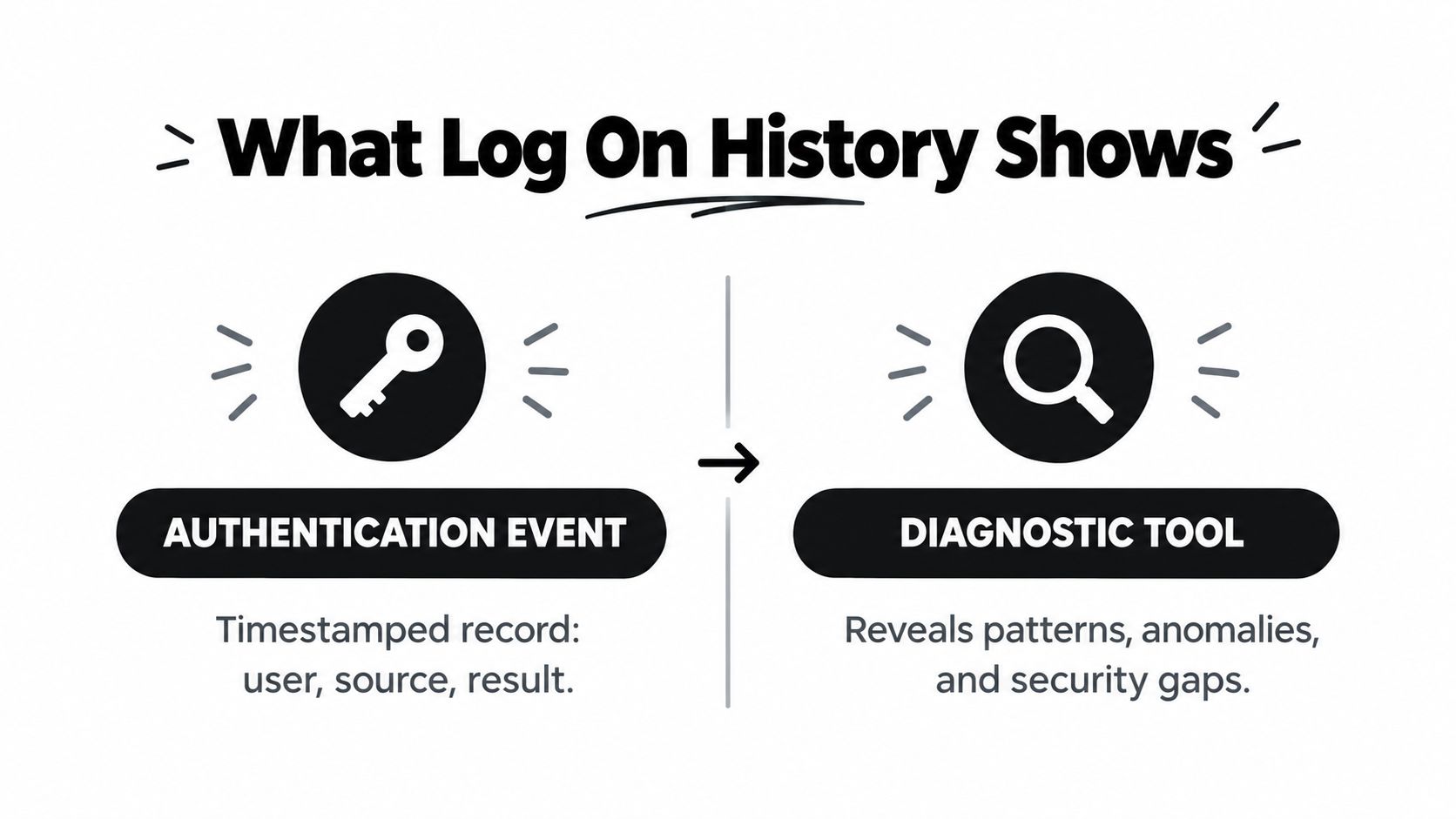
Convenience screens versus forensic trails
You’ll usually encounter two families of records:
- Local convenience logs: A workstation, phone, browser, or application shows a short recent activity window. These screens are quick to inspect, but older events disappear as the platform rotates or limits the view.
- Forensic trails: Domain controllers, identity providers, SIEM platforms, and SaaS audit systems preserve richer records for longer periods when you configure collection and retention correctly.
The practical value comes from correlation. Compare the Windows endpoint event with the domain controller authentication, then check whether the same account accessed Gmail, Salesforce, or banking software during the same period. A single screen can tell you that a sign-in occurred. Multiple sources help establish who, where, how, and whether the sequence makes sense.
For a broader explanation of how authentication records fit into operational accountability, keep the OperatorCompliance guide to audit logs with your documentation references. It provides useful context when you’re deciding which events deserve preservation beyond a convenience window.
Check Windows Event Viewer, macOS Console and last, or the account history in apps such as Gmail, Salesforce, and your banking portal. Export the records when that option is available. The workflow is simple: collect the right records, identify their scope, preserve them before retention removes them, and compare them against the user’s normal access pattern.
Reading Windows Log On History in Event Viewer
Start on the machine where you need evidence. Open Event Viewer with eventvwr.msc, expand Windows Logs, and select Security. You can also use secpol.msc to review the local audit policy, but Event Viewer is where you inspect the resulting records.
Filter the Security log for the event IDs that answer different parts of the session story:
- 4624: Successful logon.
- 4625: Failed logon.
- 4634: Session ended.
- 4647: User-initiated logoff.
Microsoft’s Windows logon and logoff tracking guidance explains why you must separate Audit Logon Events from Audit Account Logon Events. Logon auditing records access on the target workstation or server. Account-logon auditing records domain authentication on domain controllers.
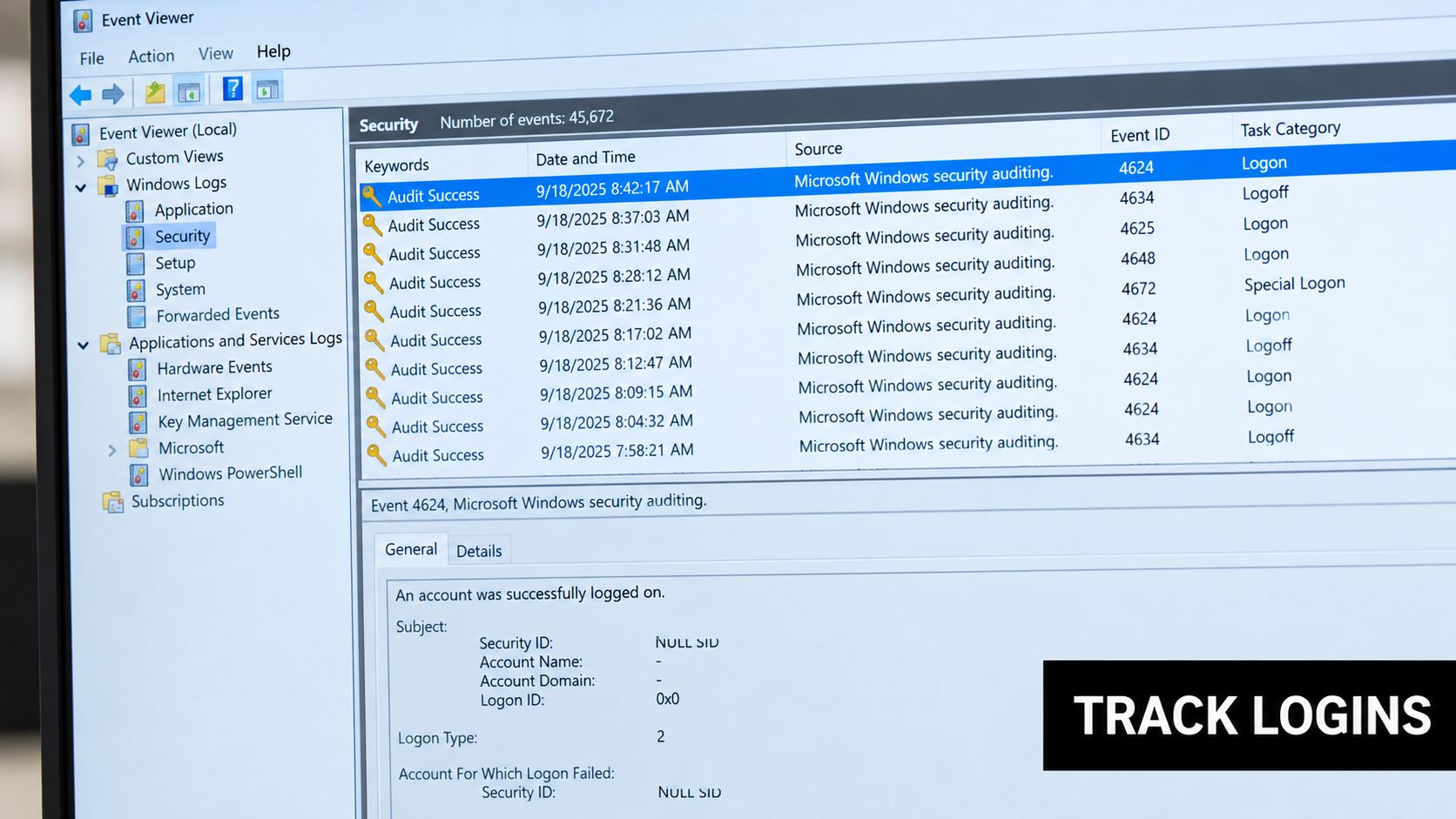
Read the fields, not just the event title
Open a 4624 or 4625 record and inspect:
- Logon Type: Type 2 usually represents a console sign-in, type 3 a network logon, and type 10 a Remote Desktop connection.
- Source Network Address: The originating address recorded by Windows.
- Target User Name: The account Windows authenticated.
- Workstation Name: The device associated with the request when available.
- Authentication Package: The mechanism used during authentication.
Use this filter XML to isolate the four event IDs:
<QueryList><Query Id="0" Path="Security"><Select Path="Security">*[System[(EventID=4624 or EventID=4625 or EventID=4634 or EventID=4647)]]</Select></Query></QueryList>
Right-click Custom Views, choose Create Custom View, switch to the XML tab, and replace the generated query with the filter. Validate it on a test system before deploying it broadly.
Practical rule: An endpoint Security log gives you local evidence. For domain-user attribution, collect the corresponding Security records from your domain controllers or SIEM.
A 4624 on a member workstation may confirm that the machine accepted a session, but it may not contain the originating address needed to identify the source of a domain authentication. Missing domain-controller coverage leaves the audit trail incomplete, especially when a technician connects through Remote Desktop or a business application uses domain credentials in the background.
Checking Log On History on macOS
macOS gives you two useful paths, and they answer different questions. The Unix layer is fast for recent account sessions. The graphical Console application is better when you need to inspect authentication messages alongside other system activity.
Open Terminal and run:
last -50
That lists the 50 most recent login records, including the account, terminal, source host, and session duration when those fields are available. To inspect an older rotated file, run:
last -f /var/log/wtmp.0
For a cleaner view that removes console-related noise, use:
last | grep -v "console"
To isolate the username and source fields in a simple output format, use:
last | awk '{print $1, $3}'
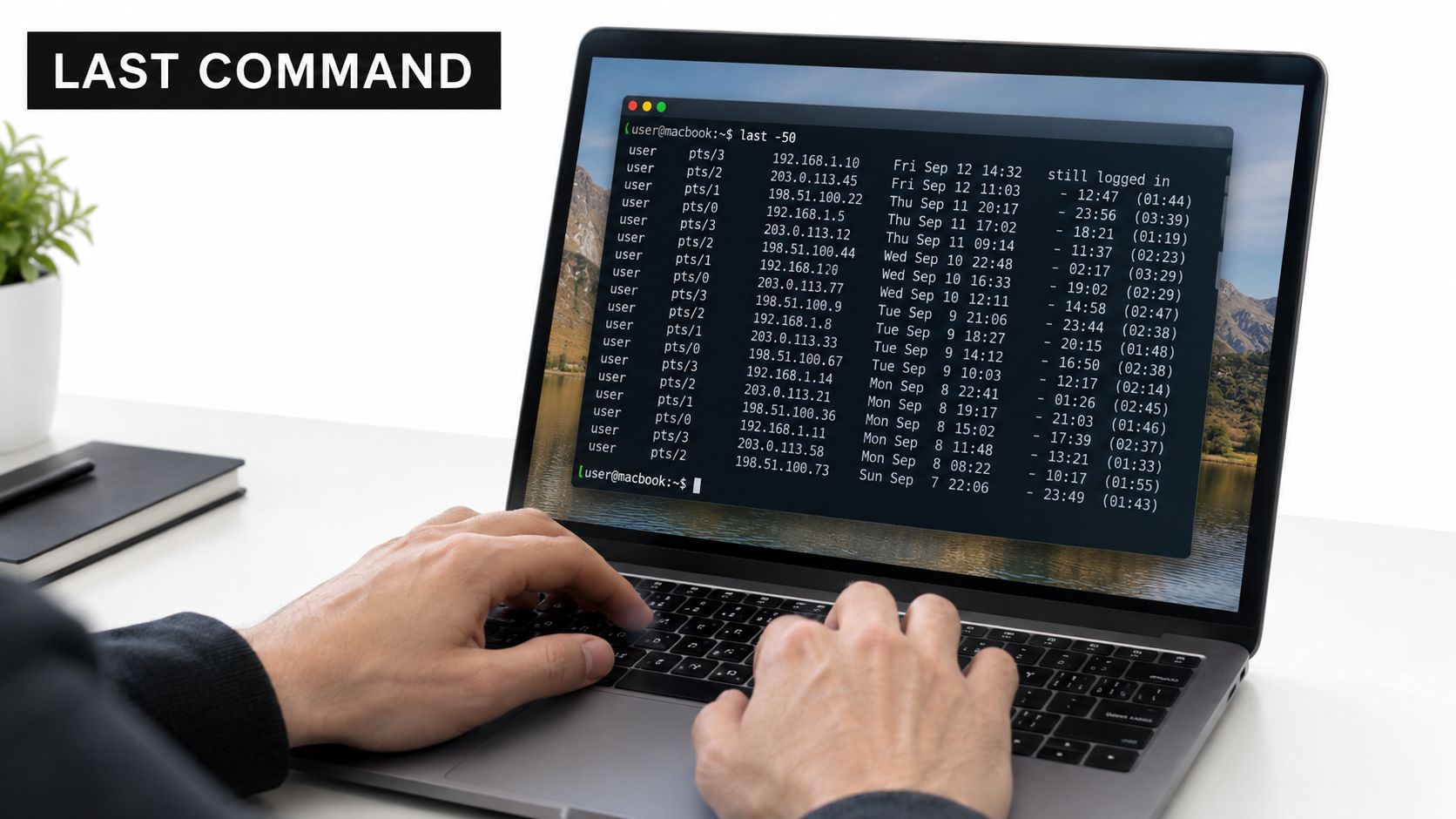
Use Console for authentication context
Open Console.app, select the Mac host, and search for the subsystem com.apple.security or the process authd. These filters narrow the stream to authentication and authorization activity rather than every operating-system message.
You’ll see names such as launchd, _locationd, and _displayproxy. Those entries usually represent daemons performing authorization checks or managing system functions. They aren’t evidence that a human user logged in. Compare the account names against the local directory before treating an entry as a person’s session.
Run:
dscl . -list /Users UniqueID 500\*
Use the resulting human account list to distinguish employee accounts from service identities. You can then narrow your Console searches or remove known daemon names from exported text.
For a practical visual walkthrough of the Terminal workflow, review the embedded demonstration below. Use it to confirm the command syntax, then test the output against a Mac you administer.
Check the Mac’s time zone before comparing timestamps with Windows or cloud records. A correct username with an apparently impossible time often reflects time-zone conversion, rotated logs, or a different event definition.
Where to Find Log On History in Web Apps You Already Use
Web applications expose convenient activity pages, but each platform defines “history” differently. Gmail gives you an account-activity view. Salesforce provides structured Login History. A banking portal may show messages or recent event summaries. None of these views automatically correlate the same user across every application.
In Gmail, sign in to myaccount.google.com, open Security, and review Last account activity. The Details panel provides recent access information, while Devices shows currently active or recently associated devices. Record the timestamp, browser or device details, and source information before the activity rolls out of the visible window.
Salesforce users should open Setup, then Identity, then Login History. The page displays recent records, while API access supports longer analysis within the platform’s retention window. Salesforce retains Login History for six months and recommends regular export of the LoginHistory object. Event Monitoring keeps Event Log Files for up to one year, and Real-Time Event Monitoring can stream LoginEvent records into Big Object storage for longer retention, as detailed in this Salesforce audit and compliance overview.
Login history retention across common web platforms
| Platform | Where to Find It | Retention Period | Shows Failed Attempts |
|---|---|---|---|
| Gmail | Google Account, Security, Last account activity, Details | Short recent activity window | Limited, inspect the event details |
| Salesforce | Setup, Identity, Login History | Six months, with Event Monitoring options | Yes, through login records |
| U.S. Bank | Messages & Alerts and secure messages inbox | Last 15 login events in the cited account-activity view | Don’t rely on the dashboard alone |
U.S. Bank’s visible activity is a convenience view, not a complete investigation record. Gmail’s activity panel works the same way. If your crew shares accounts, document the account owner, approved devices, and expected access range.
A business password manager can help you assign individual credentials and reduce shared-account ambiguity. For website behavior that occurs before a form submission, review session replay for business websites, then keep that behavioral data separate from authentication evidence. A page visit doesn’t prove a login.
Exporting and Filtering Login Records That Actually Help
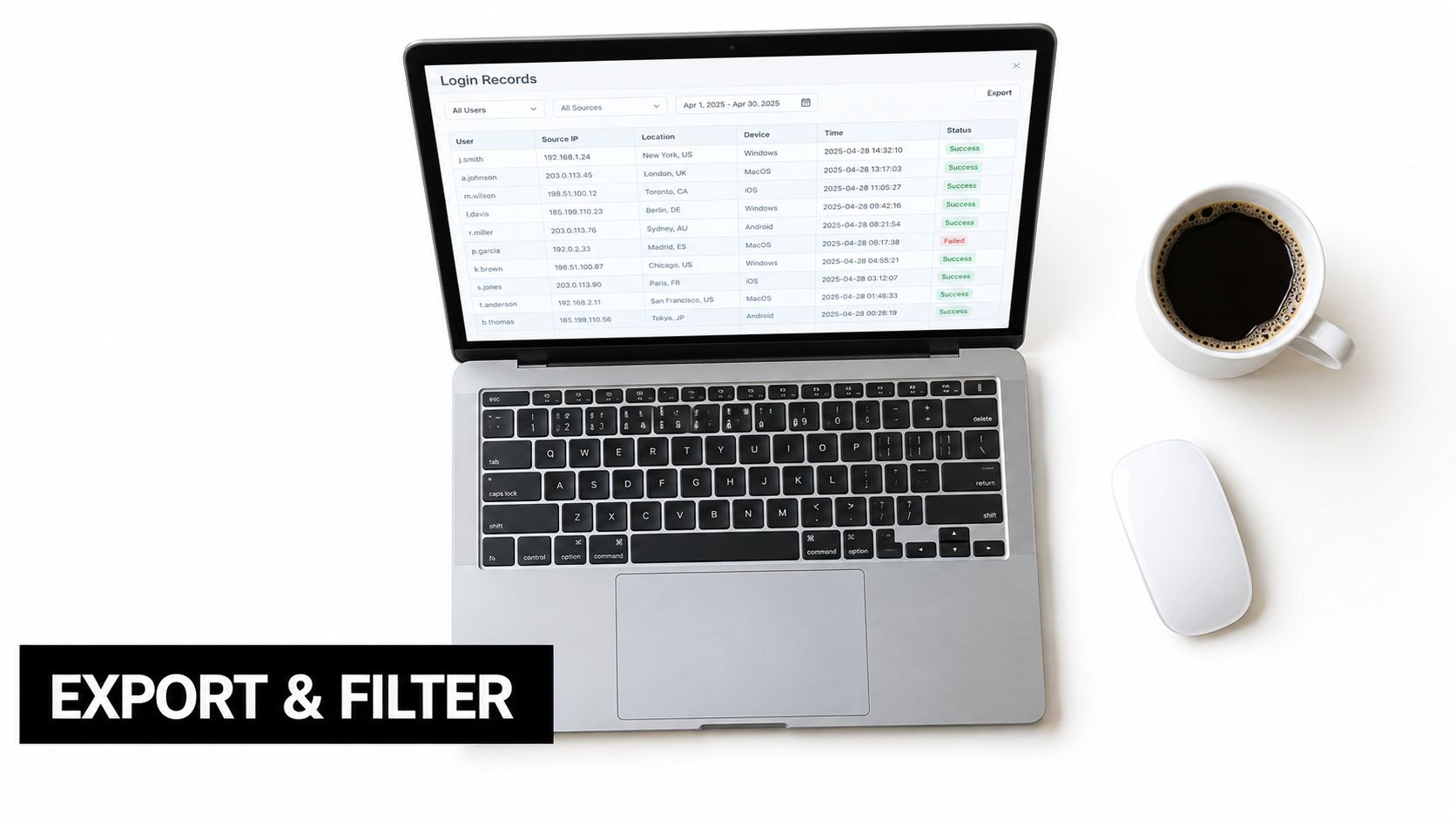
A dashboard is useful during a quick check. An export is what you need for comparison, preservation, and repeatable review.
In Windows Event Viewer, right-click the Security log and choose Save All Events As. Preserve the native .evtx file first, then create a CSV or other analysis copy. The native file retains event structure that can be lost when you flatten records into spreadsheet rows.
On macOS, save command output directly:
last -f /var/log/wtmp > mac-login-history.txt
For records that include numeric network addresses when available, use:
last -i > mac-login-history-ip.txt
Salesforce provides an Export action from Login History. Schedule that export because the native history expires after its platform retention period. Gmail doesn’t provide the same straightforward export button, so save the security activity page as HTML and parse the relevant records into a controlled spreadsheet.
Build a spreadsheet that answers questions
Use one row per event and consistent columns:
- Timestamp: Store the original time and the normalized time zone.
- Account: Use the exact username or email.
- Result: Mark success, failure, session end, or user logoff.
- Source: Record the address, device, workstation, or application.
- Session type: Preserve Logon Type or the platform’s equivalent.
Sort by timestamp, filter by subnet, and group records by account. In Excel or Google Sheets, a COUNTIFS formula can identify addresses appearing more than three times within a 24-hour window. Use it as a review trigger, not a verdict. A busy VPN gateway can create the same pattern for legitimate users.
The same discipline applies to broader operational records. Use a documented documentation workflow for contractors so exports have an owner, collection date, source system, and preservation location. Don’t overwrite last week’s file with this week’s file.
Troubleshooting Login History Gaps and False Positives
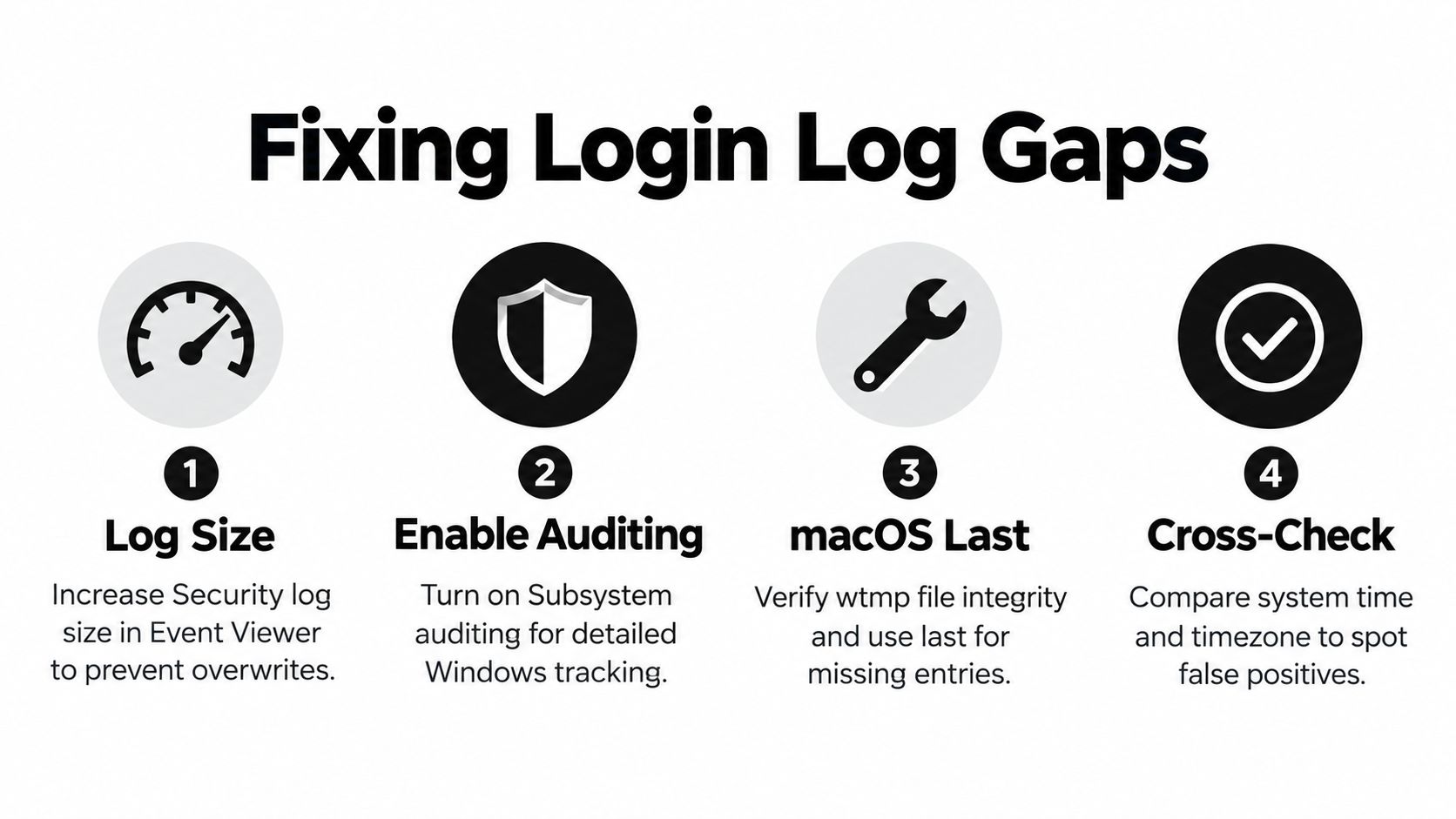
Logs lose value when you assume the visible screen contains the whole story. Windows records can be overwritten when the Security log fills, and local auditing may never have been enabled for the event you’re investigating. Increase the Security log size in Event Viewer properties and enable the relevant auditing policy before an incident occurs.
macOS has its own noise and rotation issues. The last command may show service identities such as _mdnsresponder, which don’t represent employee sessions. Use targeted filtering, including last | grep -v "system", then verify the underlying wtmp files when entries appear to be missing.
Test anomalies against network reality
A corporate VPN can route many legitimate users through one egress address. That makes a large group of accounts appear to share a source, even when each employee used a different device. Check the address against ASN information, confirm the geolocation, and compare the user-agent string before escalating.
Also compare system time and time zone across endpoints, domain controllers, and cloud platforms. A timestamp mismatch can make a normal sequence look impossible.
A suspicious row is a starting point for validation. It isn’t a conclusion.
Cloud dashboards introduce another limitation. They may show active sessions on one device but omit a session after a cookie is cleared or a browser process is terminated. Preserve the platform record when you find it, then compare it with endpoint and identity-provider evidence.
Use a documented data privacy and compliance process when exporting employee or customer-linked login records. Restrict access to the people investigating the event, retain only what your policy requires, and record why the export exists.
Response speed also matters for business systems. One widely cited lead-response benchmark reports that companies responding within 5 minutes are 21 times more likely to qualify a lead than companies waiting 30 minutes, while the odds of reaching a lead fall 100 times between minute 5 and minute 30, according to Rework’s lead-response benchmark. Security alerts deserve the same operational discipline. Assign an owner and act while the evidence is still available.
Turning Login Logs Into a Weekly Security Habit
Set a fixed weekly appointment, preferably Monday morning, and keep it short enough that your team follows it. Open Event Viewer on the domain controller, run the filtered Security query, export the prior week, and add it to the shared review spreadsheet. Preserve the original event file separately.
Repeat the last and Console pulls on every Mac you administer. Review Gmail, Salesforce, and U.S. Bank activity for the same administrative accounts, then compare timestamps and source details against the Windows and macOS records.
Weekly review checklist
- Check unusual hours: Flag access outside the user’s normal working pattern.
- Check source changes: Compare the source address and device with the user’s approved range.
- Check credential changes: Review activity after a password or credential rotation.
- Check service accounts: Give daemon and automation identities a second-pass review.
- Preserve exceptions: Export suspicious records before the platform’s convenience window removes them.
- Assign follow-up: Give each unexplained event an owner and a disposition.
Your own administrator credentials deserve the same protection as client data. In contractor environments, a compromised admin account can open dispatch systems, email, cloud storage, and connected service platforms at once. Consistency beats depth. A shallow weekly check surfaces abnormal access faster than a quarterly forensic review that starts after the useful records have expired.
If you want to connect website visitor records with your existing contractor workflow, Pipeline On identifies matched visitors, records visit history, and can sync profiles into platforms such as ServiceTitan, Housecall Pro, Jobber, HubSpot, and Pipedrive. Visit Pipeline On to see how your team can preserve clearer activity context, route follow-up quickly, and keep account and lead records organized.
Written by
Pipeline Research Team